> ## Documentation Index
> Fetch the complete documentation index at: https://docs.adoraone.com/llms.txt
> Use this file to discover all available pages before exploring further.
# Prayer Dashboard
> Manage prayer requests, prayer cards, public wall visibility, and answered prayers.
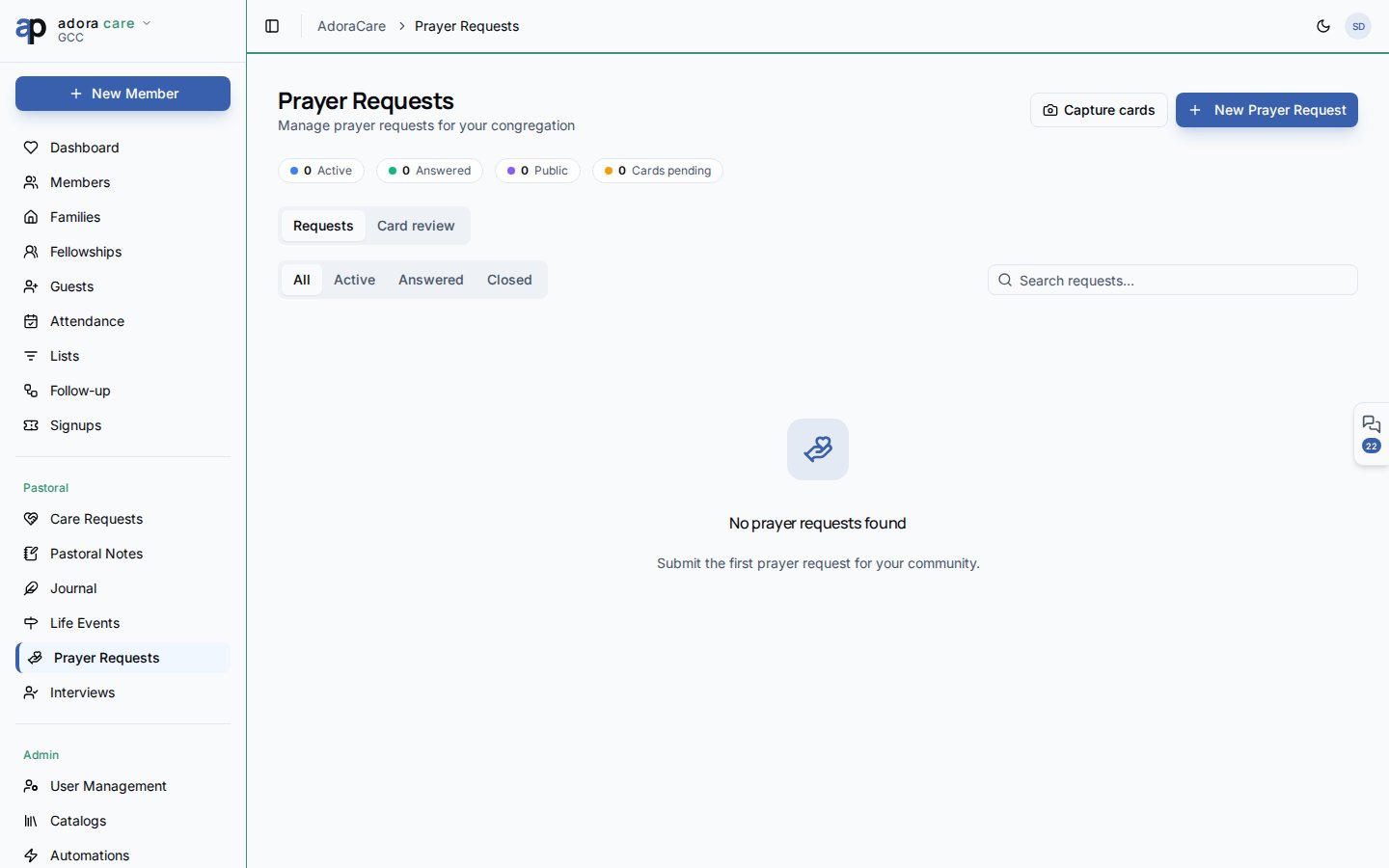
The **Prayer Dashboard** centralizes prayer requests from staff, members, and scanned prayer cards — track active needs, mark answered prayers, and moderate what appears on the public prayer wall.
 ## Quick Start
1. Open **Care → Prayer Requests**.
2. On the **Requests** tab, review active, answered, and public counts.
3. Click **New Prayer Request** to log a need manually.
4. Change **Status** to **Answered** when God provides — `answered_at` is stamped automatically.
5. Switch to **Prayer Cards** to bulk-scan or review submitted cards.
***
## How-to Guide
### Requests tab
| Control | Purpose |
| -------------------- | ------------------------------------------------------------- |
| **Status tabs** | All, Active, Answered, Closed |
| **Search** | Title, description, member, or submitter |
| **Public / Private** | Whether a request can appear on the community wall |
| **Prayer count** | Increment how many people prayed (manual or member-submitted) |
Cards show thumbnails when a photo attachment exists (e.g., from prayer card intake).
### Prayer Cards tab
When your church collects physical prayer cards:
1. Open **Prayer Cards** and use **Bulk Capture** to photograph multiple cards.
2. Review the **Pending** queue — OCR and staff review turn cards into structured requests.
3. Approve or edit before they join the main request list.
### Portal submissions
Members with portal access can submit requests from **Portal → Prayer Requests**. Those appear here with source metadata and respect the same public/private rules.
Add requests manually, from prayer cards, or via the member portal.
Keep active requests visible; move answered items to celebrate faithfulness.
Toggle **Public** only for requests the member approves for the wider church.
***
## Related
Practical care alongside prayer support.
Members submit prayers through the portal.
Confidential context for sensitive prayer needs.
## Quick Start
1. Open **Care → Prayer Requests**.
2. On the **Requests** tab, review active, answered, and public counts.
3. Click **New Prayer Request** to log a need manually.
4. Change **Status** to **Answered** when God provides — `answered_at` is stamped automatically.
5. Switch to **Prayer Cards** to bulk-scan or review submitted cards.
***
## How-to Guide
### Requests tab
| Control | Purpose |
| -------------------- | ------------------------------------------------------------- |
| **Status tabs** | All, Active, Answered, Closed |
| **Search** | Title, description, member, or submitter |
| **Public / Private** | Whether a request can appear on the community wall |
| **Prayer count** | Increment how many people prayed (manual or member-submitted) |
Cards show thumbnails when a photo attachment exists (e.g., from prayer card intake).
### Prayer Cards tab
When your church collects physical prayer cards:
1. Open **Prayer Cards** and use **Bulk Capture** to photograph multiple cards.
2. Review the **Pending** queue — OCR and staff review turn cards into structured requests.
3. Approve or edit before they join the main request list.
### Portal submissions
Members with portal access can submit requests from **Portal → Prayer Requests**. Those appear here with source metadata and respect the same public/private rules.
Add requests manually, from prayer cards, or via the member portal.
Keep active requests visible; move answered items to celebrate faithfulness.
Toggle **Public** only for requests the member approves for the wider church.
***
## Related
Practical care alongside prayer support.
Members submit prayers through the portal.
Confidential context for sensitive prayer needs.