> ## Documentation Index
> Fetch the complete documentation index at: https://docs.adoraone.com/llms.txt
> Use this file to discover all available pages before exploring further.
# Calendar
> View programs, reservations, tasks, and care milestones on one calendar or events list.
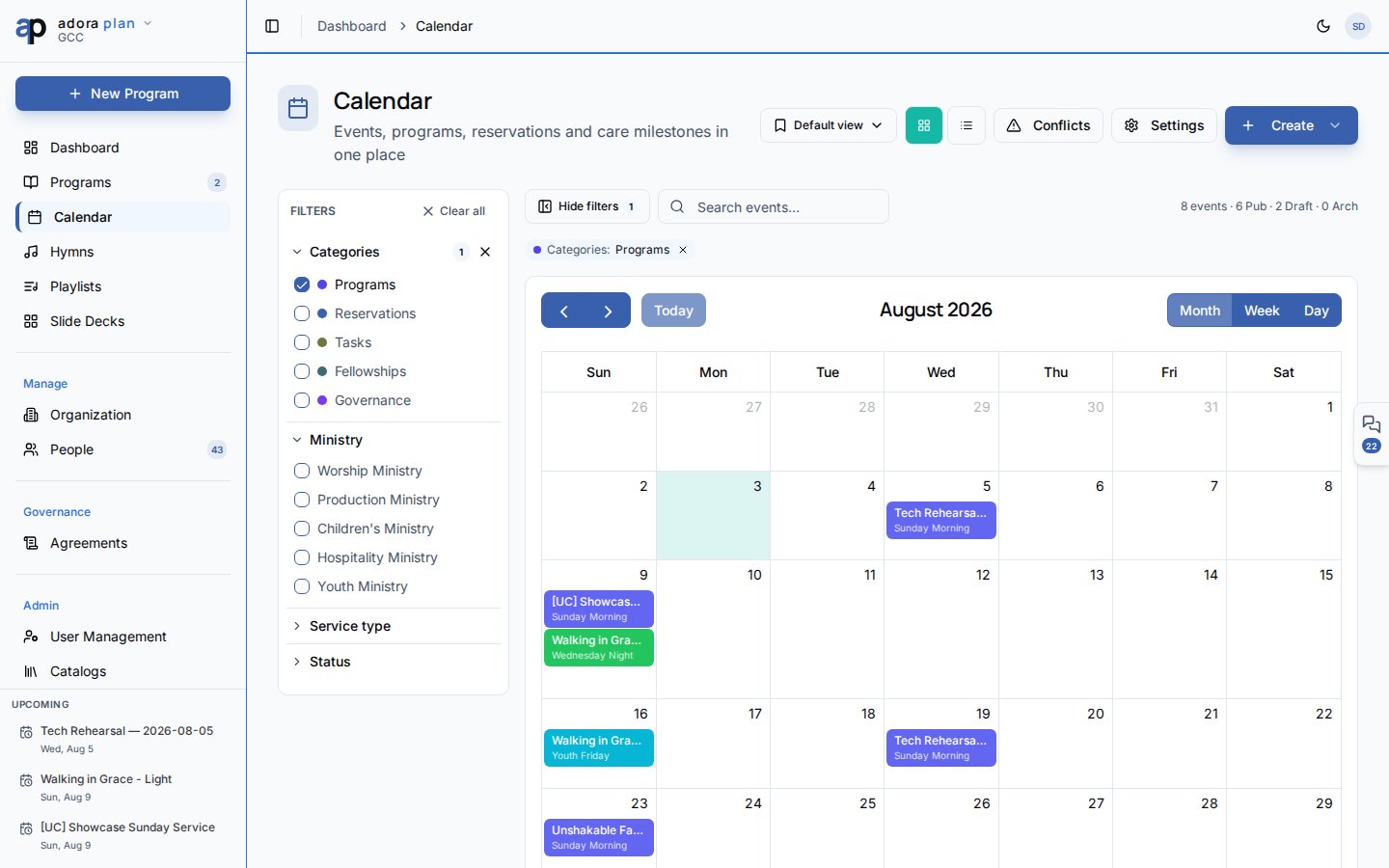
The **Calendar** unifies worship **Programs**, room **Reservations**, **Tasks**, fellowship events, and governance meetings in one place — in month/week/day grid or list view.
 ## Quick Start
1. Open **Calendar** in the sidebar.
2. Confirm source chips (**Programs**, **Reservations**, **Tasks**, etc.) are enabled.
3. Click a program block to open that **Program** editor.
4. Click an empty day to start **New Program** with the date prefilled.
5. Toggle to **List view** for a searchable events table.
***
## How-to Guide
### Navigate the calendar grid
* Switch month, week, or day using the calendar toolbar.
* **Search events…** filters visible items by title.
* Source chips control which event types appear:
* **Programs** — worship services
* **Reservations** — room/resource bookings
* **Tasks** — planning tasks with due dates
* **Fellowships** — AdoraCare small groups (when enabled)
* **Governance** — leadership meetings (when enabled)
Click an event to open its detail — programs go to `/programs/:id/edit`, tasks to **Tasks**, reservations open a detail drawer.
### Filter events
## Quick Start
1. Open **Calendar** in the sidebar.
2. Confirm source chips (**Programs**, **Reservations**, **Tasks**, etc.) are enabled.
3. Click a program block to open that **Program** editor.
4. Click an empty day to start **New Program** with the date prefilled.
5. Toggle to **List view** for a searchable events table.
***
## How-to Guide
### Navigate the calendar grid
* Switch month, week, or day using the calendar toolbar.
* **Search events…** filters visible items by title.
* Source chips control which event types appear:
* **Programs** — worship services
* **Reservations** — room/resource bookings
* **Tasks** — planning tasks with due dates
* **Fellowships** — AdoraCare small groups (when enabled)
* **Governance** — leadership meetings (when enabled)
Click an event to open its detail — programs go to `/programs/:id/edit`, tasks to **Tasks**, reservations open a detail drawer.
### Filter events
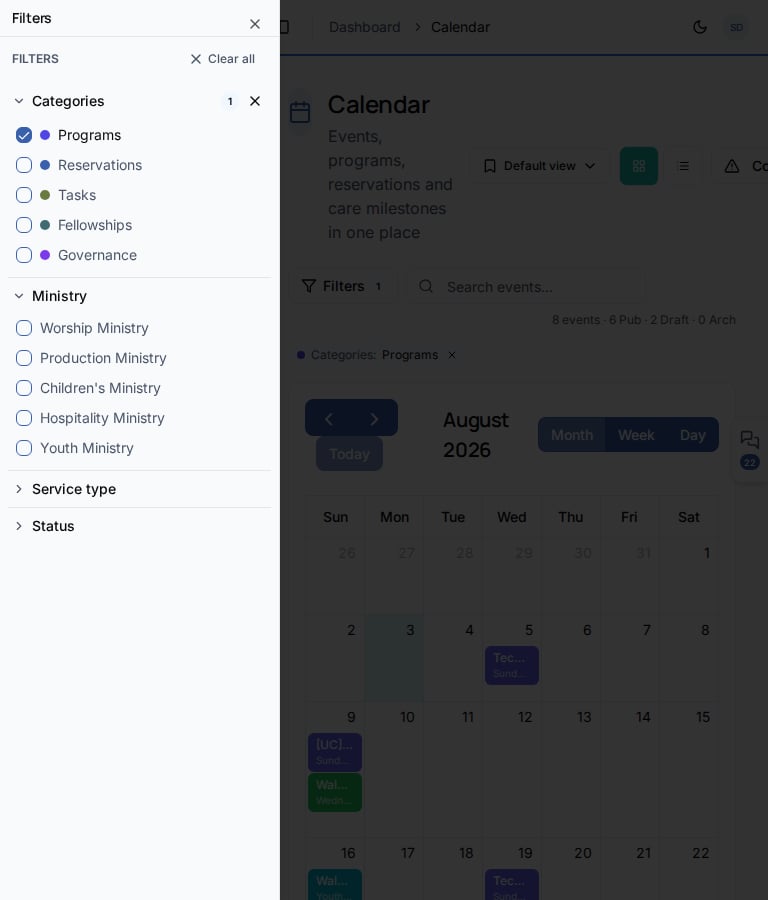 Click **Filters** to open the filter panel.
Filter by **Ministry**, **Service type**, and **Status** (for programs).
Use **Clear all** or the active-filter chip to reset.
### Save a view
Use **Save current as…** to store your filter combination (e.g. “Sunday worship only”). You can **Set as default** or **Share with whole tenant** for your team.
### List view and approvals
Toggle **List view** (or add `?view=list` to the URL).
| Tab | Purpose |
| ---------------- | ------------------------------------------------------- |
| **All events** | Searchable table with tag filter |
| **My approvals** | Booking requests waiting for your approval (`?inbox=1`) |
### Create from the calendar
Click **Create** in the header:
| Option | Result |
| ------------------- | ---------------------------------------- |
| **New Program** | Worship service wizard (`/programs/new`) |
| **New event** | Multi-reservation event dialog |
| **Request booking** | Reserve a room or resource |
| **New blockout** | Mark time unavailable (admins) |
Clicking a blank date on the grid opens **New Program** with `?date=YYYY-MM-DD` prefilled.
**Calendar** requires the **calendar integration** feature on your subscription plan. Header links also connect to **Conflicts** and **Settings** for bookings.
***
## Related
Edit the service order for a program you open from the calendar.
See the next upcoming service at a glance.
Task due dates appear on the calendar when the Tasks source is on.
Create your first program step by step.
Click **Filters** to open the filter panel.
Filter by **Ministry**, **Service type**, and **Status** (for programs).
Use **Clear all** or the active-filter chip to reset.
### Save a view
Use **Save current as…** to store your filter combination (e.g. “Sunday worship only”). You can **Set as default** or **Share with whole tenant** for your team.
### List view and approvals
Toggle **List view** (or add `?view=list` to the URL).
| Tab | Purpose |
| ---------------- | ------------------------------------------------------- |
| **All events** | Searchable table with tag filter |
| **My approvals** | Booking requests waiting for your approval (`?inbox=1`) |
### Create from the calendar
Click **Create** in the header:
| Option | Result |
| ------------------- | ---------------------------------------- |
| **New Program** | Worship service wizard (`/programs/new`) |
| **New event** | Multi-reservation event dialog |
| **Request booking** | Reserve a room or resource |
| **New blockout** | Mark time unavailable (admins) |
Clicking a blank date on the grid opens **New Program** with `?date=YYYY-MM-DD` prefilled.
**Calendar** requires the **calendar integration** feature on your subscription plan. Header links also connect to **Conflicts** and **Settings** for bookings.
***
## Related
Edit the service order for a program you open from the calendar.
See the next upcoming service at a glance.
Task due dates appear on the calendar when the Tasks source is on.
Create your first program step by step.