> ## Documentation Index
> Fetch the complete documentation index at: https://docs.adoraone.com/llms.txt
> Use this file to discover all available pages before exploring further.
# Notifications
> Control email and in-app alerts, quiet hours, and your My Msgs inbox in Collaboration.
Stay informed about **Programs**, **Roster** changes, **Tasks**, and billing — without noise you do not want. Adora delivers **email** and **in-app** notifications; you choose which types you receive and when. Actionable items appear in the **Collaboration** sidebar under **My Msgs**.
 ## Quick Start
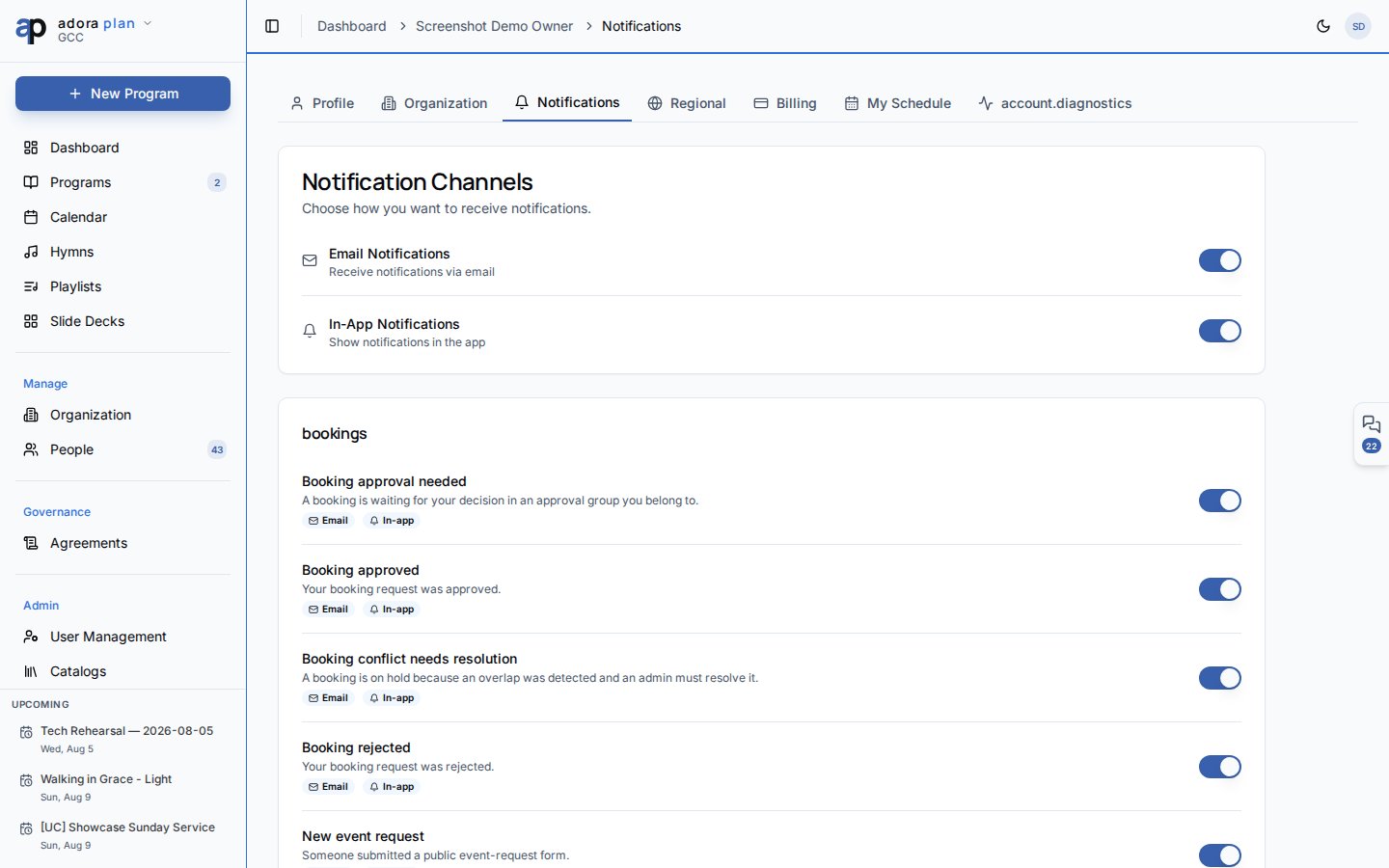
1. Click your avatar → **Account** → **Notifications**.
2. Toggle **Email Notifications** and **In-App Notifications** globally.
3. Scroll through modules (**Programs**, **Roster**, **Tasks**, **Billing**, etc.) and turn individual types on or off.
4. Set **Quiet Hours** so non-urgent alerts pause overnight.
5. Open **Collaboration** (**⌘J** / **Ctrl+J**) → **My Msgs** to act on roster invites and recent alerts.
***
## How-to Guide
### Notification channels
At the top of **Account** → **Notifications**:
| Channel | Delivers via |
| ------------------------ | ------------------------------------------------ |
| **Email Notifications** | Messages to your login email |
| **In-App Notifications** | **Collaboration** → **My Msgs** and linked pages |
Turning off a global channel disables that delivery method for all types (unless a type is marked **System** and cannot be disabled).
### Per-module preferences
Notification types are grouped by area:
* **Programs & Services** — finalized programs, reminders, schedule changes
* **Roster & Scheduling** — invitations, confirmations, conflicts
* **Team** — collaborator and role updates
* **Billing & Subscription** — plan and payment notices
* **Song Library**, **Tasks**, **Engagement**, **Care & Pastoral**, **System & Account**
Each row shows a description and which channels (email / in-app) apply. Types labeled **System** are required for account security and cannot be turned off.
### Quiet hours and digest
Below your preferences:
* **Enable quiet hours** — suppress non-urgent notifications during a daily window
* **Start / end time** — hourly boundaries (e.g. 22:00–07:00)
* **Weekly digest day** — day of the week for summary emails
### My Msgs and Inbox
## Quick Start
1. Click your avatar → **Account** → **Notifications**.
2. Toggle **Email Notifications** and **In-App Notifications** globally.
3. Scroll through modules (**Programs**, **Roster**, **Tasks**, **Billing**, etc.) and turn individual types on or off.
4. Set **Quiet Hours** so non-urgent alerts pause overnight.
5. Open **Collaboration** (**⌘J** / **Ctrl+J**) → **My Msgs** to act on roster invites and recent alerts.
***
## How-to Guide
### Notification channels
At the top of **Account** → **Notifications**:
| Channel | Delivers via |
| ------------------------ | ------------------------------------------------ |
| **Email Notifications** | Messages to your login email |
| **In-App Notifications** | **Collaboration** → **My Msgs** and linked pages |
Turning off a global channel disables that delivery method for all types (unless a type is marked **System** and cannot be disabled).
### Per-module preferences
Notification types are grouped by area:
* **Programs & Services** — finalized programs, reminders, schedule changes
* **Roster & Scheduling** — invitations, confirmations, conflicts
* **Team** — collaborator and role updates
* **Billing & Subscription** — plan and payment notices
* **Song Library**, **Tasks**, **Engagement**, **Care & Pastoral**, **System & Account**
Each row shows a description and which channels (email / in-app) apply. Types labeled **System** are required for account security and cannot be turned off.
### Quiet hours and digest
Below your preferences:
* **Enable quiet hours** — suppress non-urgent notifications during a daily window
* **Start / end time** — hourly boundaries (e.g. 22:00–07:00)
* **Weekly digest day** — day of the week for summary emails
### My Msgs and Inbox
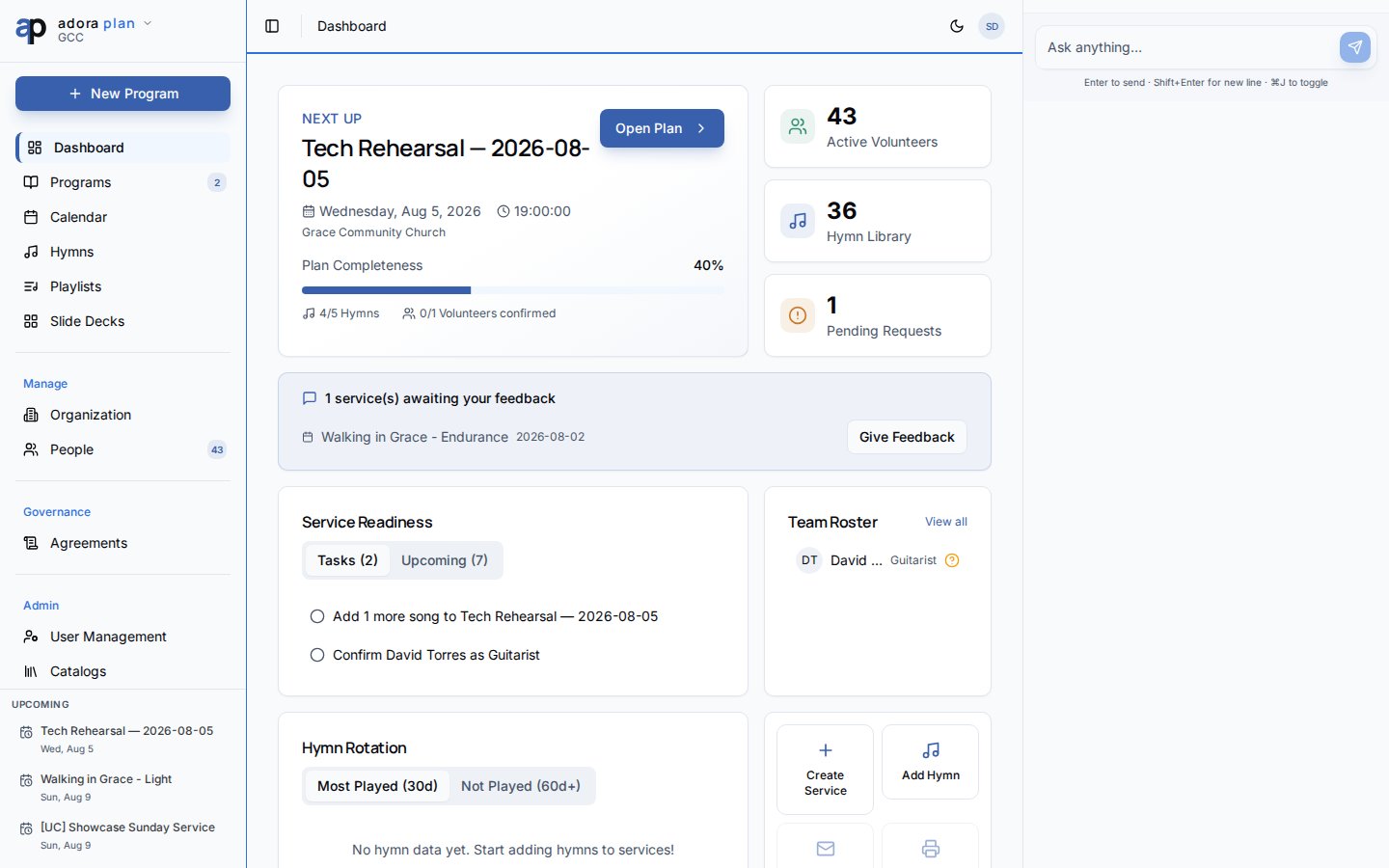 | Surface | How to open | What you can do |
| --------------------- | ----------------------------------- | ----------------------------------------------------------------- |
| **My Msgs** (sidebar) | **Collaboration** tab → **My Msgs** | Accept/decline roster cards, open @mentions, jump to linked pages |
| **Inbox** (`/inbox`) | Sidebar link or direct URL | Full-page history with filters (parallel to **My Msgs**) |
Clicking a notification navigates to its **action URL** when one is set (for example, a **Program** or **Roster** page).
**Inbox** requires the **operations** plan capability. Notification **preferences** are available to every signed-in user regardless of plan.
Church owners can send test notifications from **Settings** → **Developer** → Notification tester (owner-only tab).
***
## Related
Team channels, **My Msgs**, and **Adora Assistant**.
Roster invitations and confirmation alerts.
Program finalized and preparation reminders.
Developer tools for testing notification delivery.
| Surface | How to open | What you can do |
| --------------------- | ----------------------------------- | ----------------------------------------------------------------- |
| **My Msgs** (sidebar) | **Collaboration** tab → **My Msgs** | Accept/decline roster cards, open @mentions, jump to linked pages |
| **Inbox** (`/inbox`) | Sidebar link or direct URL | Full-page history with filters (parallel to **My Msgs**) |
Clicking a notification navigates to its **action URL** when one is set (for example, a **Program** or **Roster** page).
**Inbox** requires the **operations** plan capability. Notification **preferences** are available to every signed-in user regardless of plan.
Church owners can send test notifications from **Settings** → **Developer** → Notification tester (owner-only tab).
***
## Related
Team channels, **My Msgs**, and **Adora Assistant**.
Roster invitations and confirmation alerts.
Program finalized and preparation reminders.
Developer tools for testing notification delivery.