> ## Documentation Index
> Fetch the complete documentation index at: https://docs.adoraone.com/llms.txt
> Use this file to discover all available pages before exploring further.
# Programs
> Plan worship services with the Service Order editor, team assignments, and one-click presentation.
**Programs** are the heart of AdoraPlan. Each **Program** is one worship **Service** — with a date, service type, **Service Order**, roster, and activity notes.
 ## Quick Start
1. Click **Create Service** on the **Dashboard** or **Programs** in the sidebar.
2. Click **Create Program** (or use **Create** → **Create Program**).
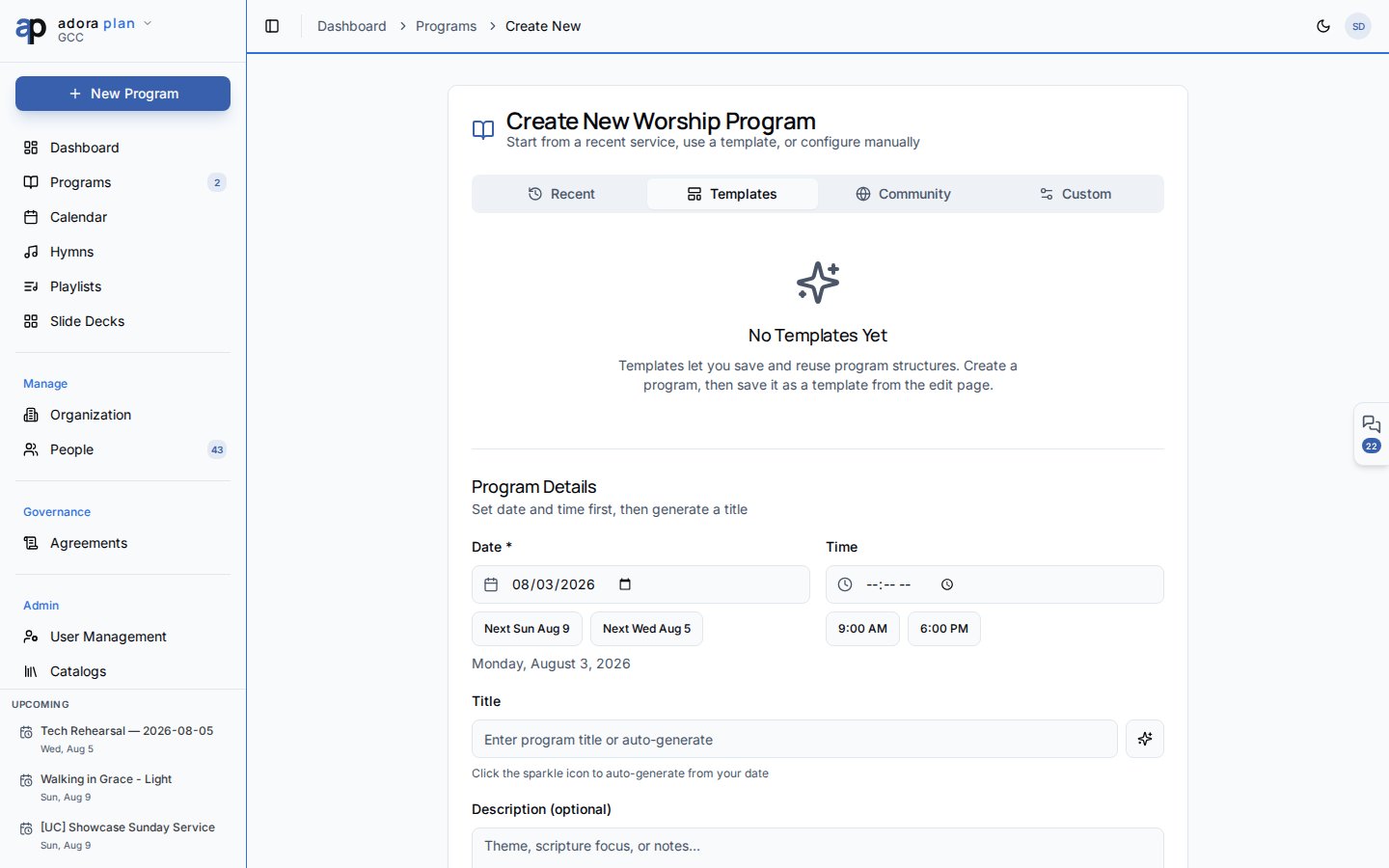
3. On the wizard, pick **Recent**, **Templates**, **Community**, or **Custom**.
4. Set service type, date, and time, then click **Save as Draft**.
5. Add hymns and activities to the **Service Order**, then **Finalize & Notify** when ready.
***
## How-to Guide
### Create a program
## Quick Start
1. Click **Create Service** on the **Dashboard** or **Programs** in the sidebar.
2. Click **Create Program** (or use **Create** → **Create Program**).
3. On the wizard, pick **Recent**, **Templates**, **Community**, or **Custom**.
4. Set service type, date, and time, then click **Save as Draft**.
5. Add hymns and activities to the **Service Order**, then **Finalize & Notify** when ready.
***
## How-to Guide
### Create a program
 Go to **Programs** and click **Create Program**, or **Create** → **Create Program**.
* **Recent** — duplicate a past service
* **Templates** — start from a saved service order template
* **Community** — browse templates shared by other churches (moderated)
* **Custom** — configure date, ministry, and service type manually
Click **Save as Draft**. You are taken to the program editor.
### Build the Service Order
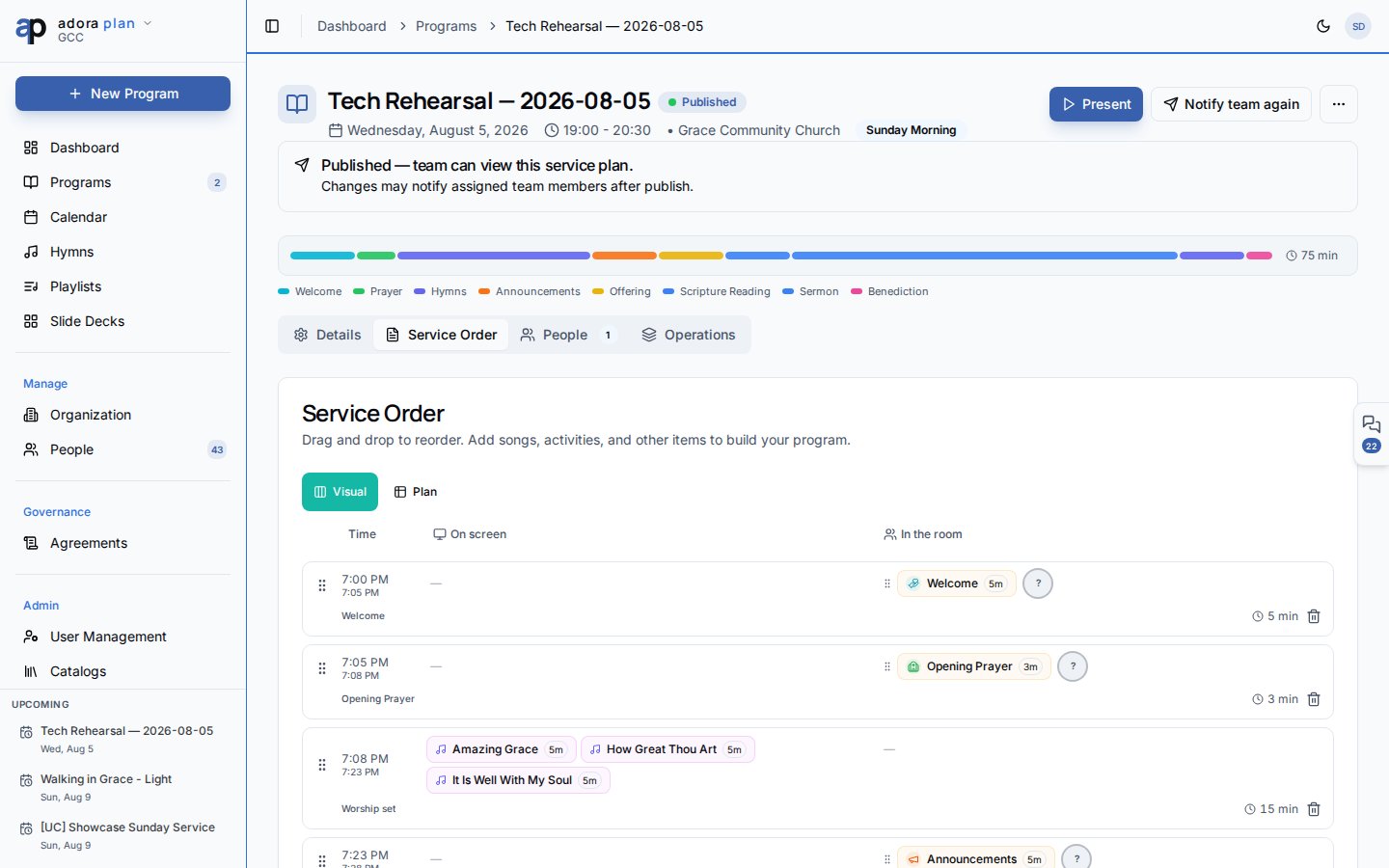
The editor opens on the **Service Order** tab by default.
Use **Add Item** to insert:
* **Add Hymn/Song** — pick from your **Hymn Library**
* **Add Activity** — readings, prayers, announcements, etc.
* **Add Custom Slide** — free-form slide content
Drag rows by the handle on the left to match your flow.
Changes save automatically. Use **Save as Draft** in the footer if you are explicitly saving before leaving.
### Manage people and activity
| Tab | Purpose |
| ----------------- | ----------------------------------------------------------- |
| **Details** | Program metadata (date, service type, status) |
| **Service Order** | Songs, activities, and timing |
| **People** | **Roster** assignments and **Team** notes |
| **Activity** | **Notes**, **Tasks**, **Feedback**, **Changes**, **Report** |
### Publish and present
From the program header:
* **Present** — launch presentation mode for this service.
* **Finalize & Notify** — publish and notify assigned team members (confirmation dialog).
* **Print Program** / **Download Report** — PDF outputs.
* **Share Service** — share a read-only link (when enabled for your plan).
Program statuses: **Draft**, **Published**, **Archived**, **Cancelled**.
### Browse and filter programs
On the **Programs** list page:
* Search by title.
* Filter by **Ministry**, **Service type**, and **Status**.
* Use date presets: **Upcoming**, **This Week**, **This Month**, **Past**.
* Switch between grid and list views.
* Card menu: **View**, **Edit**, **Duplicate**, **Publish** / **Unpublish**, **Delete**.
**Duplicate last program** on the **Create** menu copies your most recent past service — a fast way to plan a recurring format.
***
## Related
End-to-end walkthrough for your first program.
Build the library you pull from in the Service Order.
Create programs from a date on the calendar grid.
Assign volunteers to program roles.
Go to **Programs** and click **Create Program**, or **Create** → **Create Program**.
* **Recent** — duplicate a past service
* **Templates** — start from a saved service order template
* **Community** — browse templates shared by other churches (moderated)
* **Custom** — configure date, ministry, and service type manually
Click **Save as Draft**. You are taken to the program editor.
### Build the Service Order
The editor opens on the **Service Order** tab by default.
Use **Add Item** to insert:
* **Add Hymn/Song** — pick from your **Hymn Library**
* **Add Activity** — readings, prayers, announcements, etc.
* **Add Custom Slide** — free-form slide content
Drag rows by the handle on the left to match your flow.
Changes save automatically. Use **Save as Draft** in the footer if you are explicitly saving before leaving.
### Manage people and activity
| Tab | Purpose |
| ----------------- | ----------------------------------------------------------- |
| **Details** | Program metadata (date, service type, status) |
| **Service Order** | Songs, activities, and timing |
| **People** | **Roster** assignments and **Team** notes |
| **Activity** | **Notes**, **Tasks**, **Feedback**, **Changes**, **Report** |
### Publish and present
From the program header:
* **Present** — launch presentation mode for this service.
* **Finalize & Notify** — publish and notify assigned team members (confirmation dialog).
* **Print Program** / **Download Report** — PDF outputs.
* **Share Service** — share a read-only link (when enabled for your plan).
Program statuses: **Draft**, **Published**, **Archived**, **Cancelled**.
### Browse and filter programs
On the **Programs** list page:
* Search by title.
* Filter by **Ministry**, **Service type**, and **Status**.
* Use date presets: **Upcoming**, **This Week**, **This Month**, **Past**.
* Switch between grid and list views.
* Card menu: **View**, **Edit**, **Duplicate**, **Publish** / **Unpublish**, **Delete**.
**Duplicate last program** on the **Create** menu copies your most recent past service — a fast way to plan a recurring format.
***
## Related
End-to-end walkthrough for your first program.
Build the library you pull from in the Service Order.
Create programs from a date on the calendar grid.
Assign volunteers to program roles.