

Quick Start
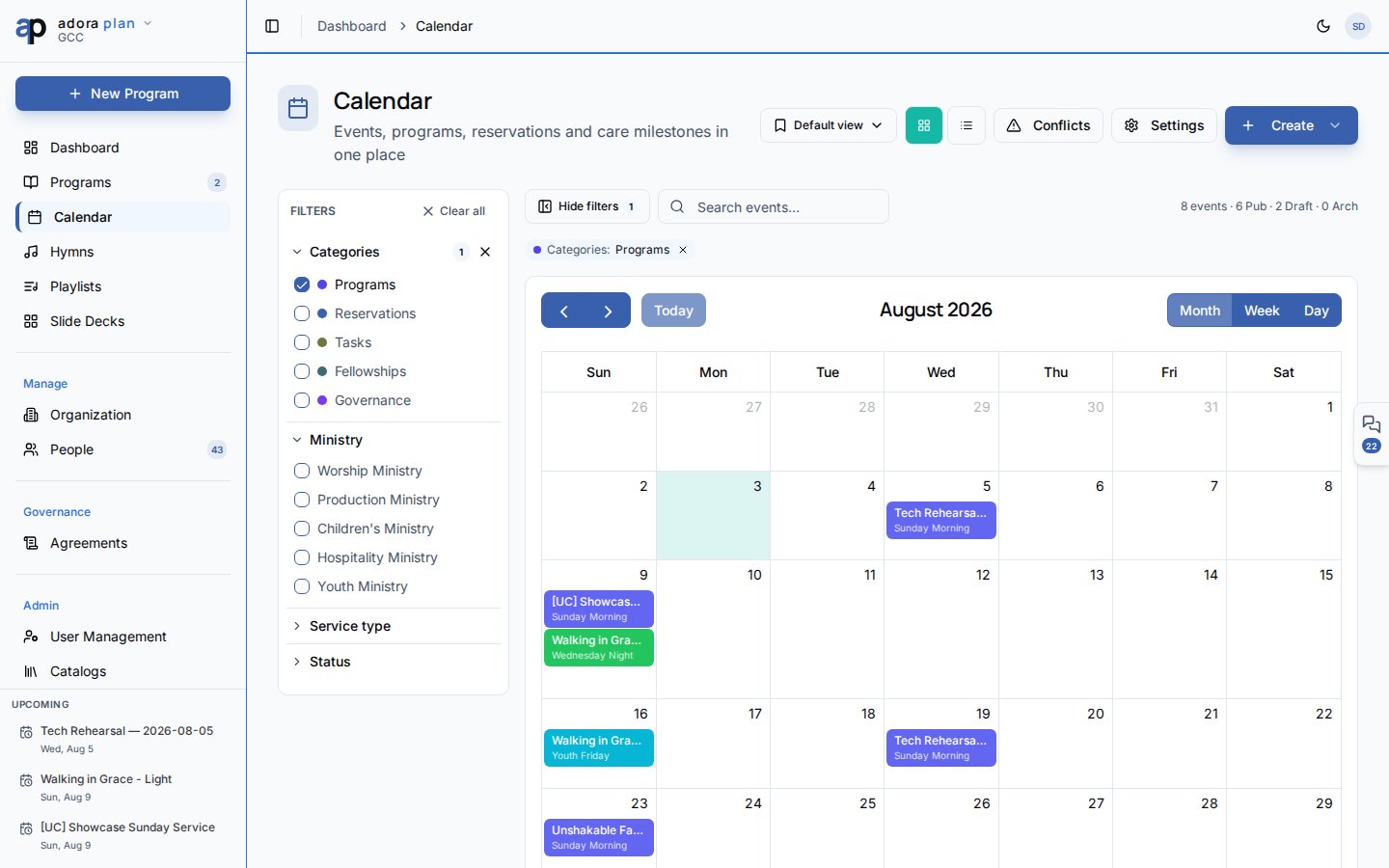
- Open Calendar in the sidebar.
- Confirm source chips (Programs, Reservations, Tasks, etc.) are enabled.
- Click a program block to open that Program editor.
- Click an empty day to start New Program with the date prefilled.
- Toggle to List view for a searchable events table.
How-to Guide
Navigate the calendar grid
- Switch month, week, or day using the calendar toolbar.
- Search events… filters visible items by title.
- Source chips control which event types appear:
- Programs — worship services
- Reservations — room/resource bookings
- Tasks — planning tasks with due dates
- Fellowships — AdoraCare small groups (when enabled)
- Governance — leadership meetings (when enabled)
/programs/:id/edit, tasks to Tasks, reservations open a detail drawer.
Filter events
1
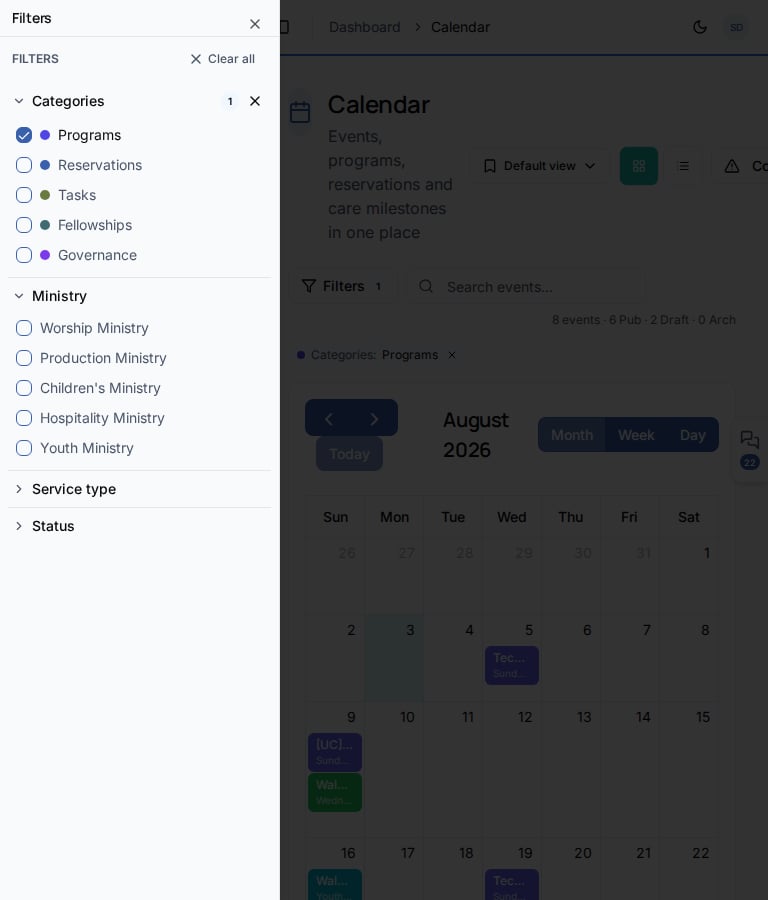
Open filters
Click Filters to open the filter panel.
2
Narrow by category
Filter by Ministry, Service type, and Status (for programs).
3
Clear
Use Clear all or the active-filter chip to reset.
Save a view
Use Save current as… to store your filter combination (e.g. “Sunday worship only”). You can Set as default or Share with whole tenant for your team.List view and approvals
Toggle List view (or add?view=list to the URL).
Create from the calendar
Click Create in the header:
Clicking a blank date on the grid opens New Program with
?date=YYYY-MM-DD prefilled.
Calendar requires the calendar integration feature on your subscription plan. Header links also connect to Conflicts and Settings for bookings.
Related
Programs
Edit the service order for a program you open from the calendar.
Dashboard
See the next upcoming service at a glance.
Tasks
Task due dates appear on the calendar when the Tasks source is on.
Plan Your First Service
Create your first program step by step.