

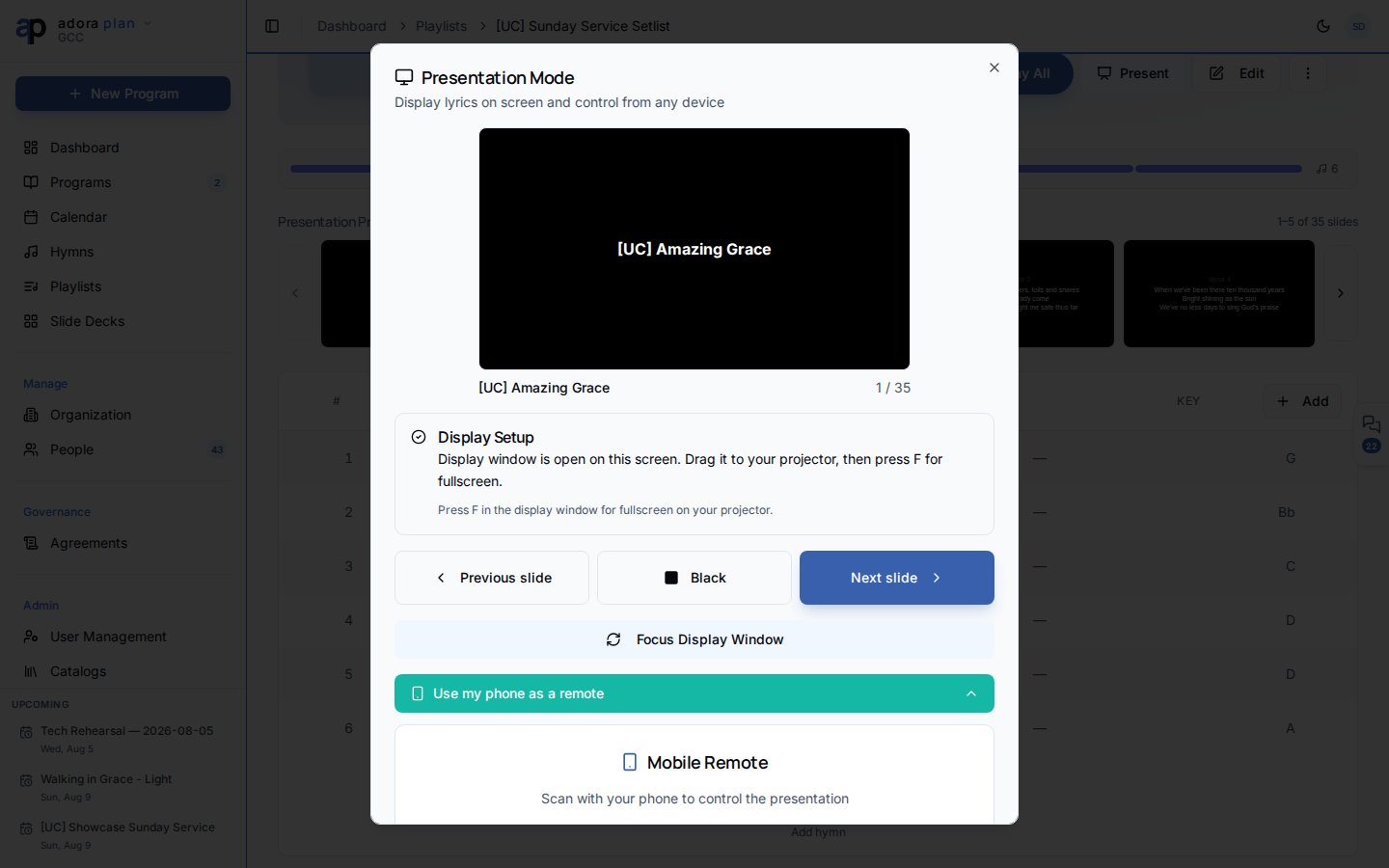
Quick Start
- Start a presentation from Hymns, Playlists, or Programs (see Presentation).
- In the launcher, expand Use my phone as a remote.
- Scan the QR code or note the 6-character code.
- On your phone, open the link or go to
/present/remoteand enter the code. - Tap NEXT LINE / PREV LINE or swipe to control slides.
How-to Guide
Get a session code
When a presentation is running, the host sees:- A QR code linking to
/present/remote?session=XXXXXX - Copy link and Copy code buttons
- Instructions to type the code manually at
/present/remote
BroadcastChannel).
Connect your phone
Option A — QR code (recommended): After starting a presentation, expand Use my phone as a remote in the launcher. Scan the QR code with your phone camera. Option B — Manual entry: Open/present/remote on your phone, type the 6-character session code shown below the QR code, and tap Connect.
Remote controls
Once connected, the remote shows:
Swipe gestures: left/right for lines, up/down for hymns. Mobile devices get light haptic feedback on each command.
The header shows connection status (Live, Connecting…, or Disconnected) and the active session code. The current slide card displays song title, section, hymn/slide position, and a lyric preview.
What the remote controls
The remote mirrors whatever the host started — a hymn selection, a playlist, or a full program (including custom slides). It does not choose the song list; it only controls the active session.The remote requires an active presentation session on the host computer. If the presenter ends the session or closes the browser, the remote disconnects.
Related
Presentation
Start a session and generate the remote QR code.
Playlists
Present an ordered set of hymns with one click.
Settings
Presentation and Karaoke display settings.
Programs
Present the full service order from the program editor.