

Quick Start
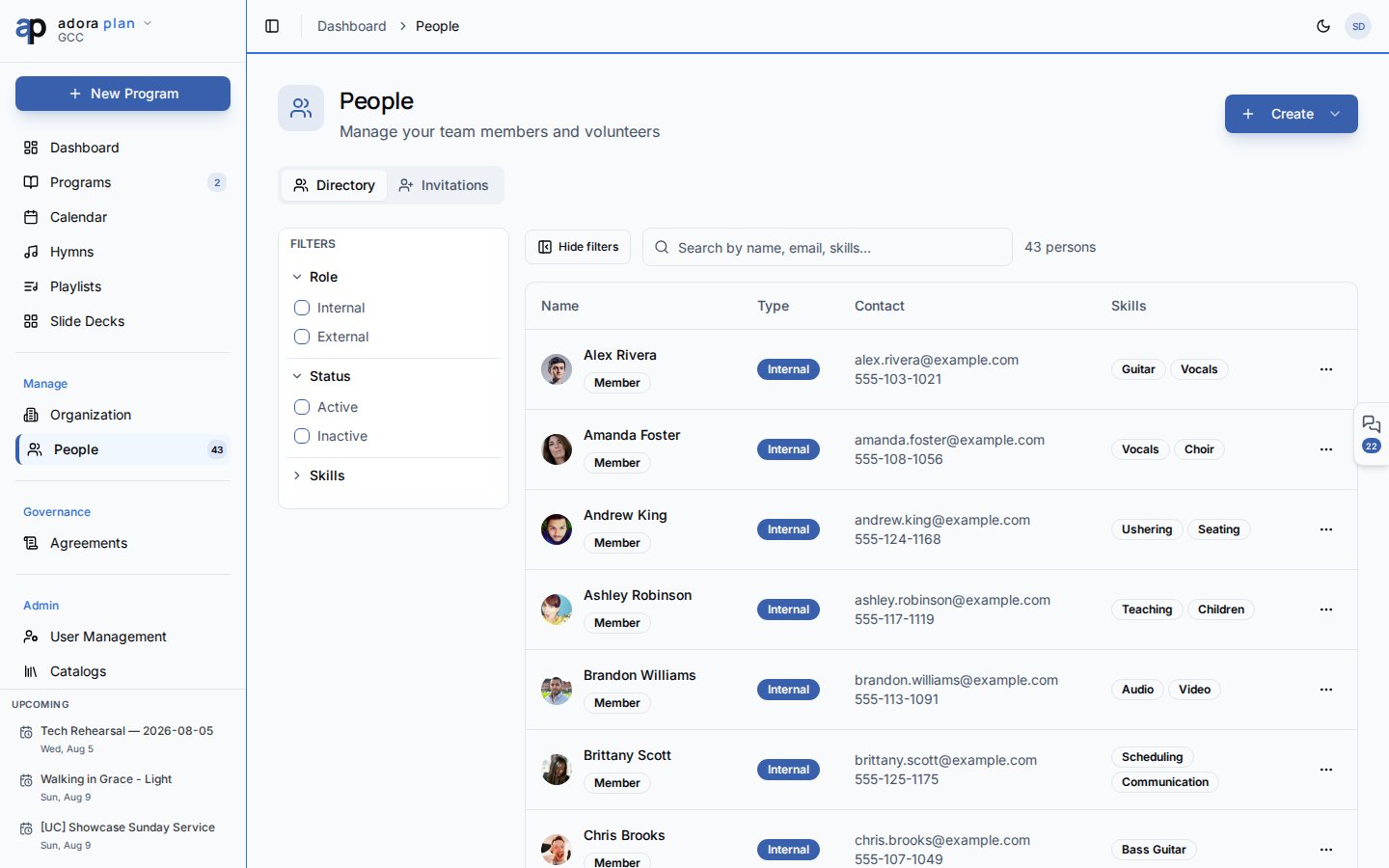
- Open People in the sidebar.
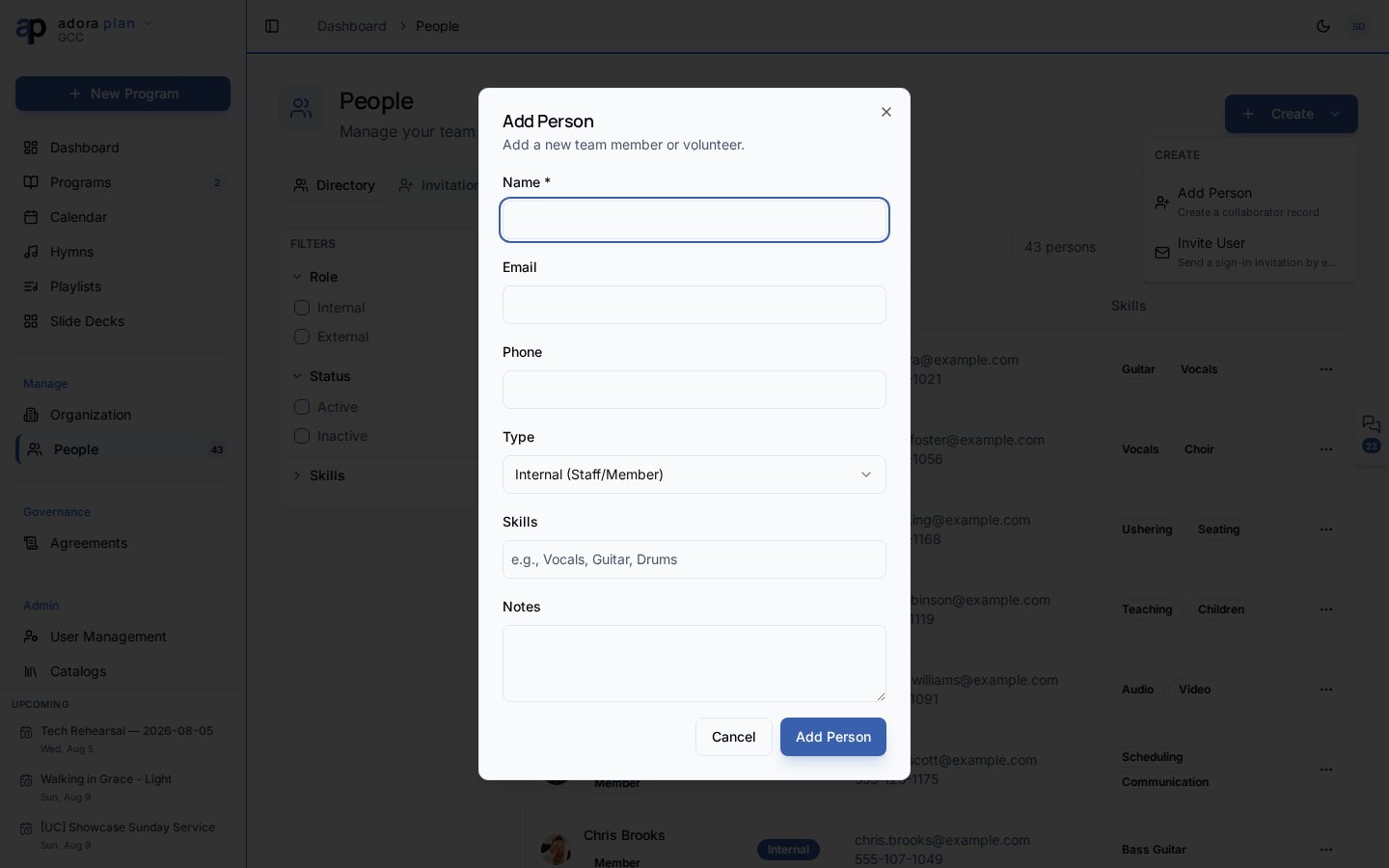
- Click Create → Add Person.
- Enter name, email, type (Internal or External), and optional skills.
- Save — the person appears in the Directory tab.
- Open their profile to set Qualifications for roster roles.
How-to Guide
Add a person
1
Open the dialog
Create → Add Person.
2
Choose type
- Internal (Staff/Member) — church staff or members with app access
- External (Guest/Contractor) — occasional helpers without full membership
3
Add skills
Optional comma-friendly skills (e.g. Vocals, Guitar, Drums) for filtering.
4
Save
The person appears in the directory. Click a row to open their profile.
Directory tab
Invitations tab
Send platform sign-in invites:- Open the Invitations tab.
- Click Invite by Email (or Create → Invite User for admins).
- Choose a permission level: Admin, Staff, Volunteer, or Member.
- The invitee receives email instructions to join your organization.
Person profile
Click a directory row to open/people/:id.
The Serving Summary card shows qualified roles, teams, and upcoming assignments.
Manage role qualifications
1
Open qualifications
Row menu → Manage Roles, or the Qualifications tab on the profile.
2
Add qualification
Add Qualification → pick a role from Team Roles catalog.
3
Set proficiency
Trainee, Standard, Advanced, or Lead.
Related
Roster
Assign qualified people to program slots.
Organization
Church and ministry structure.
Programs
Team notes on the program People tab.
AdoraCare Members
Congregation member records (separate from collaborators).