

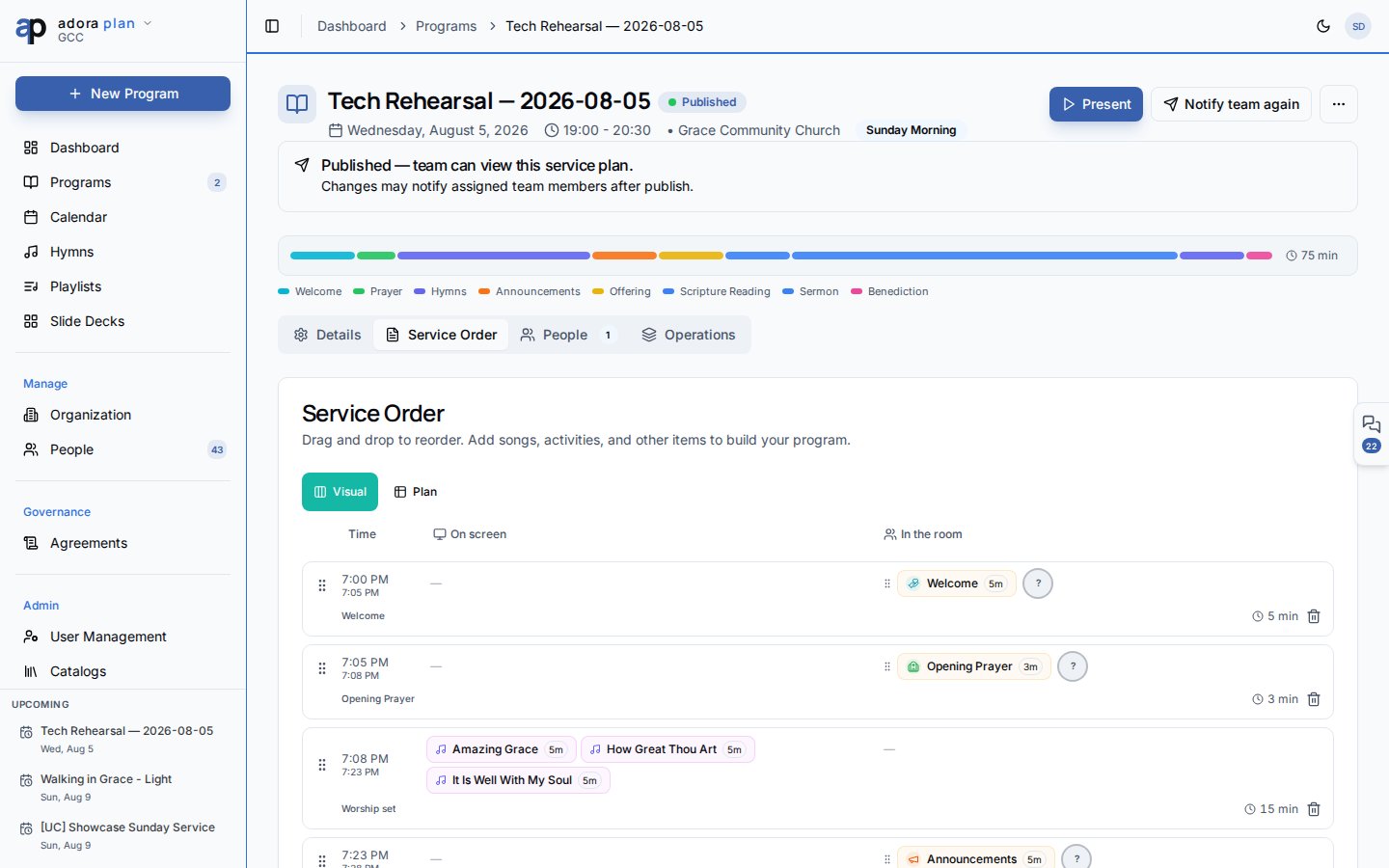
Quick Start
- Open Tasks in the sidebar (or a program → Activity → Tasks).
- Click New Task.
- Set Title, Category, Date, and Timing (Before / During / After service).
- Save, then edit the task to add Staffing slots.
- Assign volunteers and track Open → In Progress → Completed.
How-to Guide
Create a standalone task
1
New task
Tasks → New Task.
2
Fill details
Title, Category (from catalogs), optional Ministry, Date, start/end times, Timing, and description.
3
Save and staff
After save, reopen the task — the Staffing section appears. Use From Template or Add Slot.
Timing options
Link tasks to a program
From Programs → open a program → Activity tab → Tasks sub-tab:- Linked Tasks shows ancillary activities for that service.
- Add Task pre-fills the program date and links the task.
Staffing a task
Slot statuses: Unassigned, Pending, Confirmed, Declined, Completed.
The summary line shows
confirmed/total confirmed · filled/total assigned.
Task categories and defaults
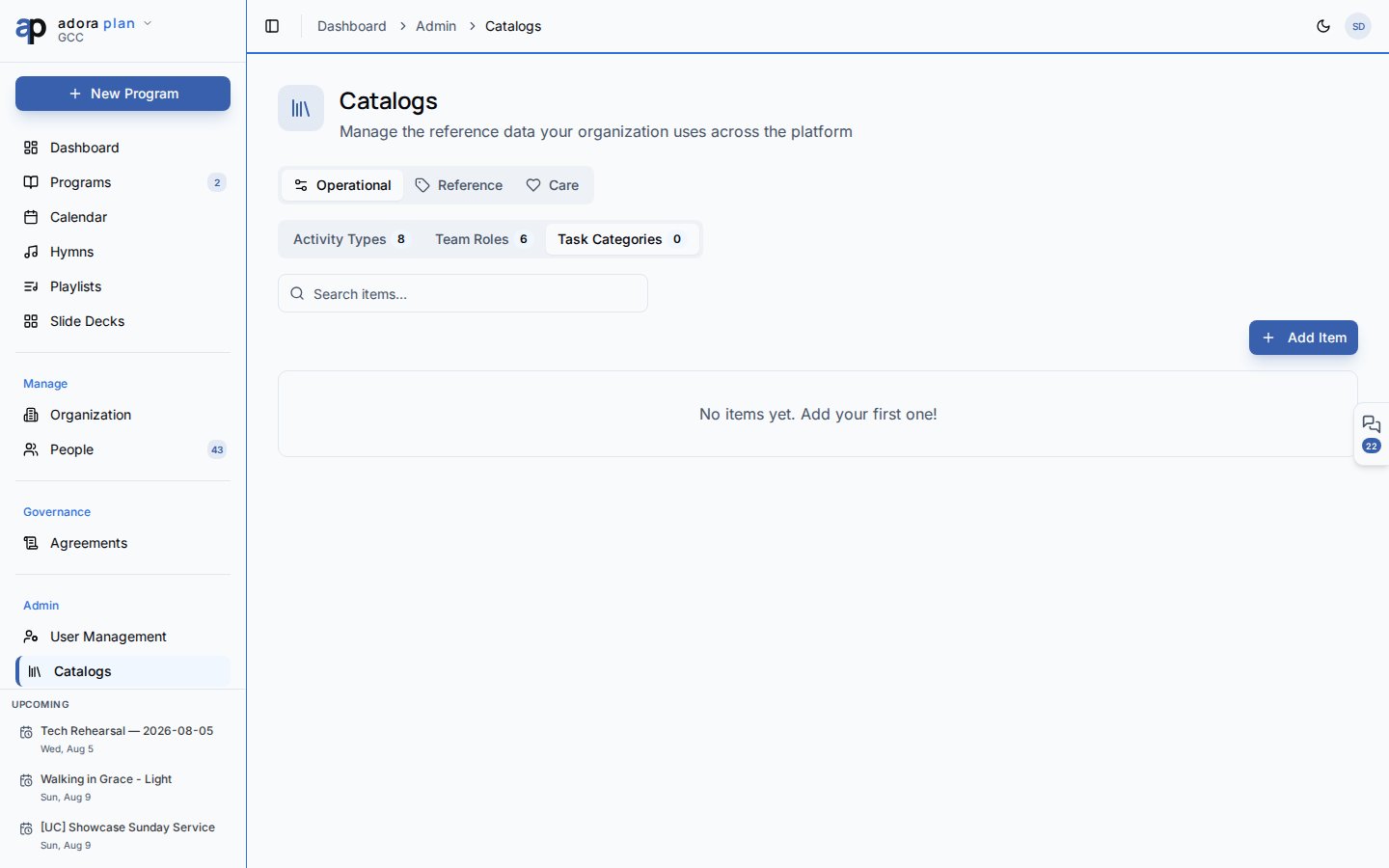
- Open
/catalogs(admin navigation). - Select the Task Categories tab.
- Expand a category to edit default staffing roles and quantities.
- New tasks in that category can From Template to create matching slots.
Filter and search
On/tasks:
- Search tasks… — title and description
- Filters — Status (Open, In Progress, Completed, Cancelled) and Category
Related
Programs
Linked tasks on the Activity tab.
Roster
Program role assignments (separate from task staffing).
People
Collaborators assigned to task slots.
Dashboard
Service Readiness lists open tasks.