

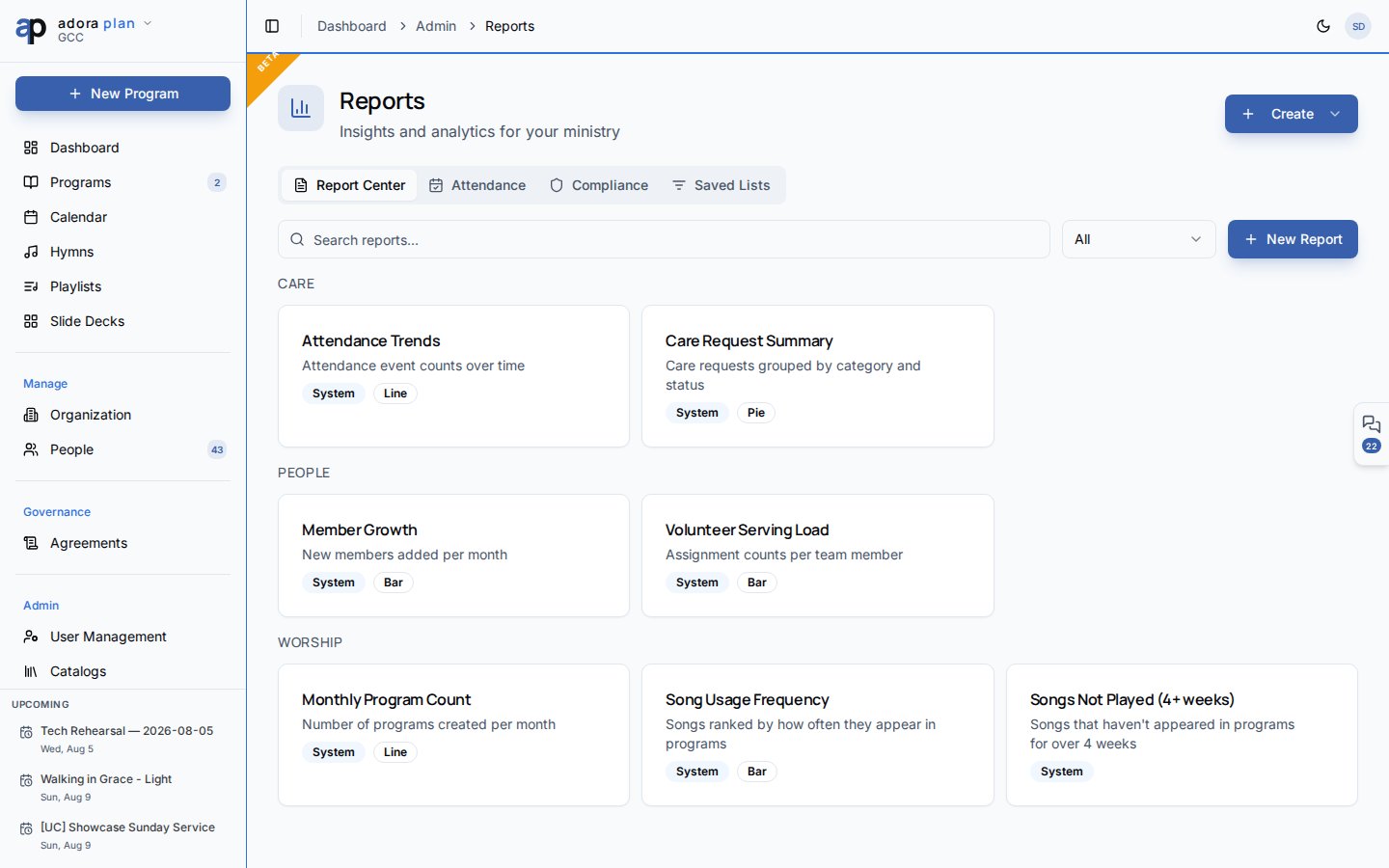
The Reports link in the Admin sidebar appears on Pro plans and above. If you do not see it, ask your church admin about upgrading, or open Reports directly at
/reports when your plan includes advanced reports.Quick Start
- Open Admin → Reports in the sidebar.
- On Report Center, browse by category (Worship, People, Care, General).
- Click Run on a report, enter any parameters, and view results.
- Use Export CSV to download table data.
- Switch to Attendance for guest and retention trends over time.
How-to Guide
Report Center
The default Report Center tab is your report library.
Use Create → Build custom report to open the designer. Define a name, category, SQL query template (with
{{parameter}} placeholders), parameters, columns, and an optional chart (bar, line, pie).
Attendance tab
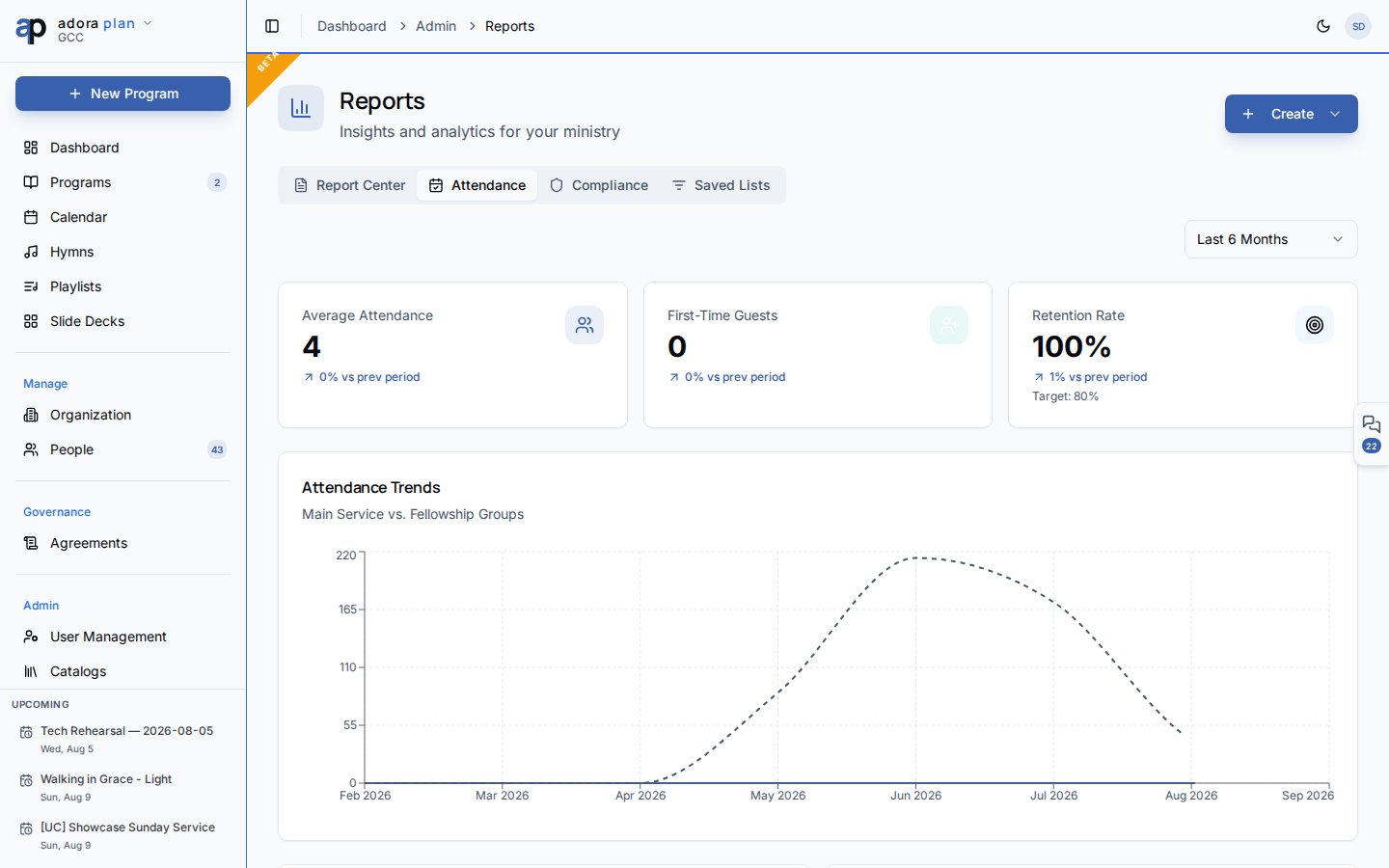
Charts include Attendance Trends (main service vs. fellowship groups), Guest Sources, and the Guest Pipeline funnel (visitor → member).
Compliance tab
Review data stewardship for pastoral and member records:- PII Inventory — counts of members, counselees, and guests with contact fields
- Counseling Data Sensitivity — cases, sessions, and confidential notes
- Data Retention Warnings — closed counseling journeys older than two years
- Export CSV — download the compliance summary
Access Audit is planned for a future release.
Saved Lists tab
Build reusable people segments with rule-based filters (visibility: private or shared with your church).- Click Create → New Saved List, or use Create on the Saved Lists tab.
- Name the list and set visibility.
- Open a list to refine rules and preview matching people.
- Use saved lists for outreach, follow-up, or reporting workflows.
Related
Dashboard
At-a-glance metrics and upcoming programs.
People
The directory that feeds people-based reports and saved lists.
Settings
Configure the report preparation reminder threshold under Programs.
Subscription
Advanced reports require a Pro plan or higher.