

Quick Start
- Open Roster in the sidebar (under Manage).
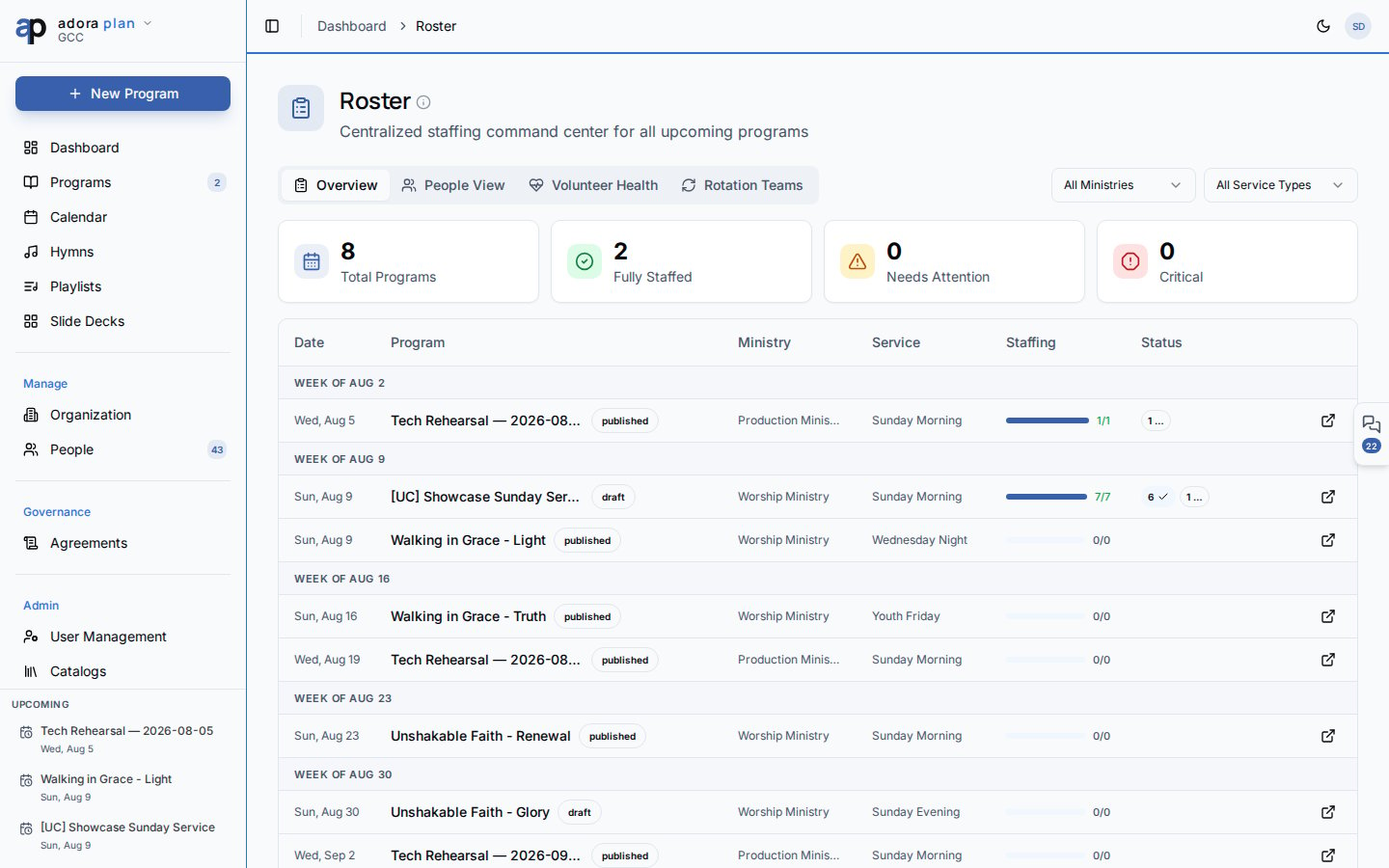
- On Overview, scan programs that need attention and use Auto-schedule understaffed when many slots are open.
- Click a program row to open its Roster tab in the program editor.
- Use Auto-fill from Template, then Auto-schedule or assign volunteers manually.
- Check Volunteer Health for overloaded volunteers serving across multiple ministries.
How-to Guide
Overview tab
The Overview tab groups upcoming programs by week.
Stat cards summarize Total Programs, Fully Staffed, Needs Attention, and Critical.
Auto-schedule understaffed fills open slots across all programs that still need volunteers, using fairness rules (volunteers who have waited longest since they last served are picked first).
Click Open program (external link icon) to jump to that program’s roster editor.
People View tab
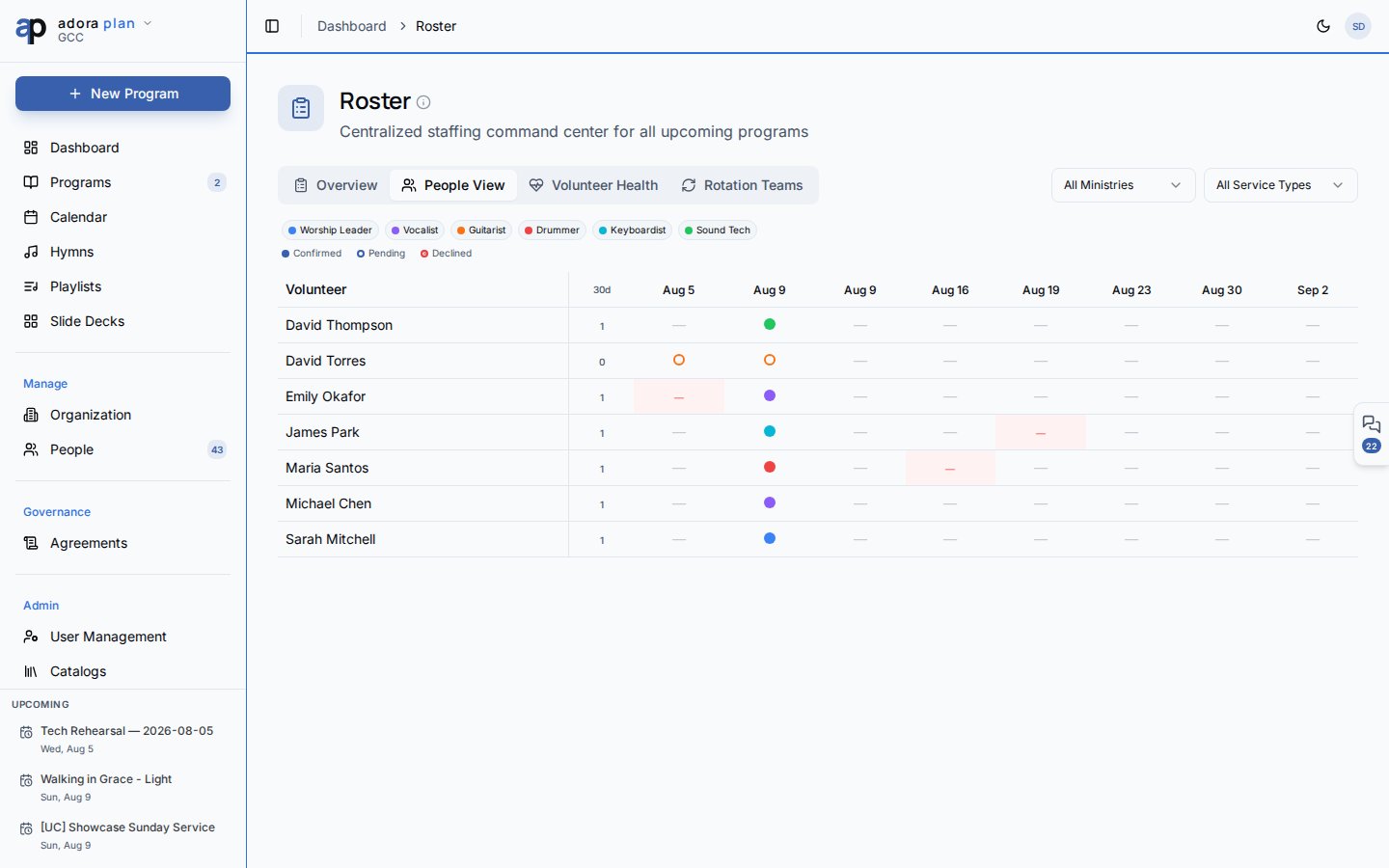
- Colored cells show role assignments (filled = confirmed, outline = pending, ✕ = declined).
- Double-booked! highlights scheduling conflicts on the same date.
- Filter by role using the legend.
- 30d column shows serving frequency; high frequency (4+ serves) shows a warning icon.
Volunteer Health tab
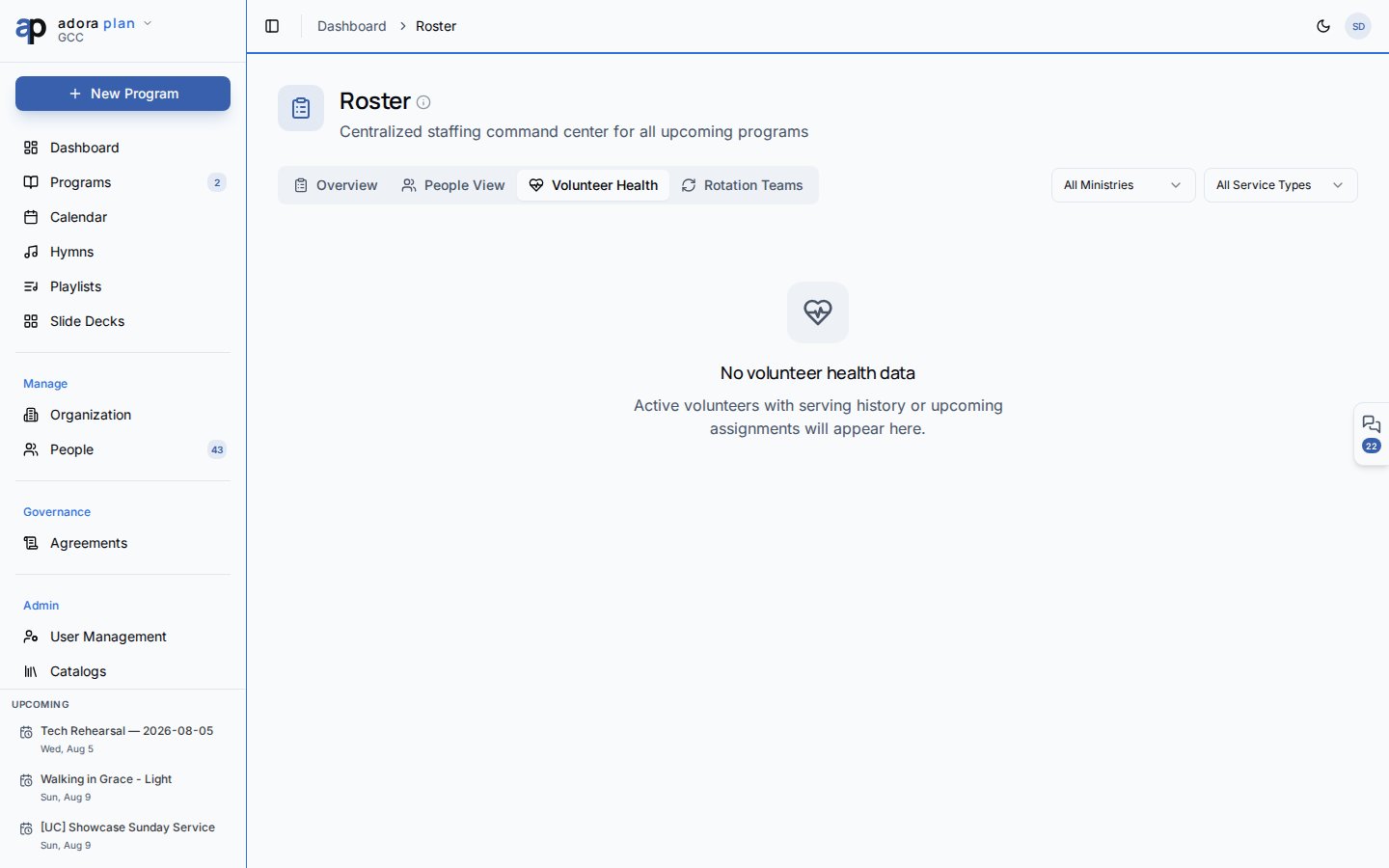
The Cross-ministry load section highlights volunteers serving in two or more ministries. Expand a row to see the per-ministry breakdown.
Rotation Teams tab
Organize volunteers into teams with a rotation pattern:
Create a team, add members by role, then click Apply to upcoming programs to pre-fill matching program slots for the next 90 days.
Assign roster on a program
1
Open the program
Go to Programs → open a program → People tab → Roster sub-tab.
2
Create slots
Click Auto-fill from Template to create slots from the Service Type staffing requirements (set in Organization).
3
Fill slots
Use Auto-schedule for fair automatic assignment, Assign for manual picks, or Assign Team for a rotation team.
4
Open signup (optional)
Toggle Signup on an unassigned slot so qualified volunteers can claim it from My Schedule.
5
Track responses
Statuses: Unassigned, Pending, Confirmed, Declined, No Show.
Volunteer self-service (My Schedule)
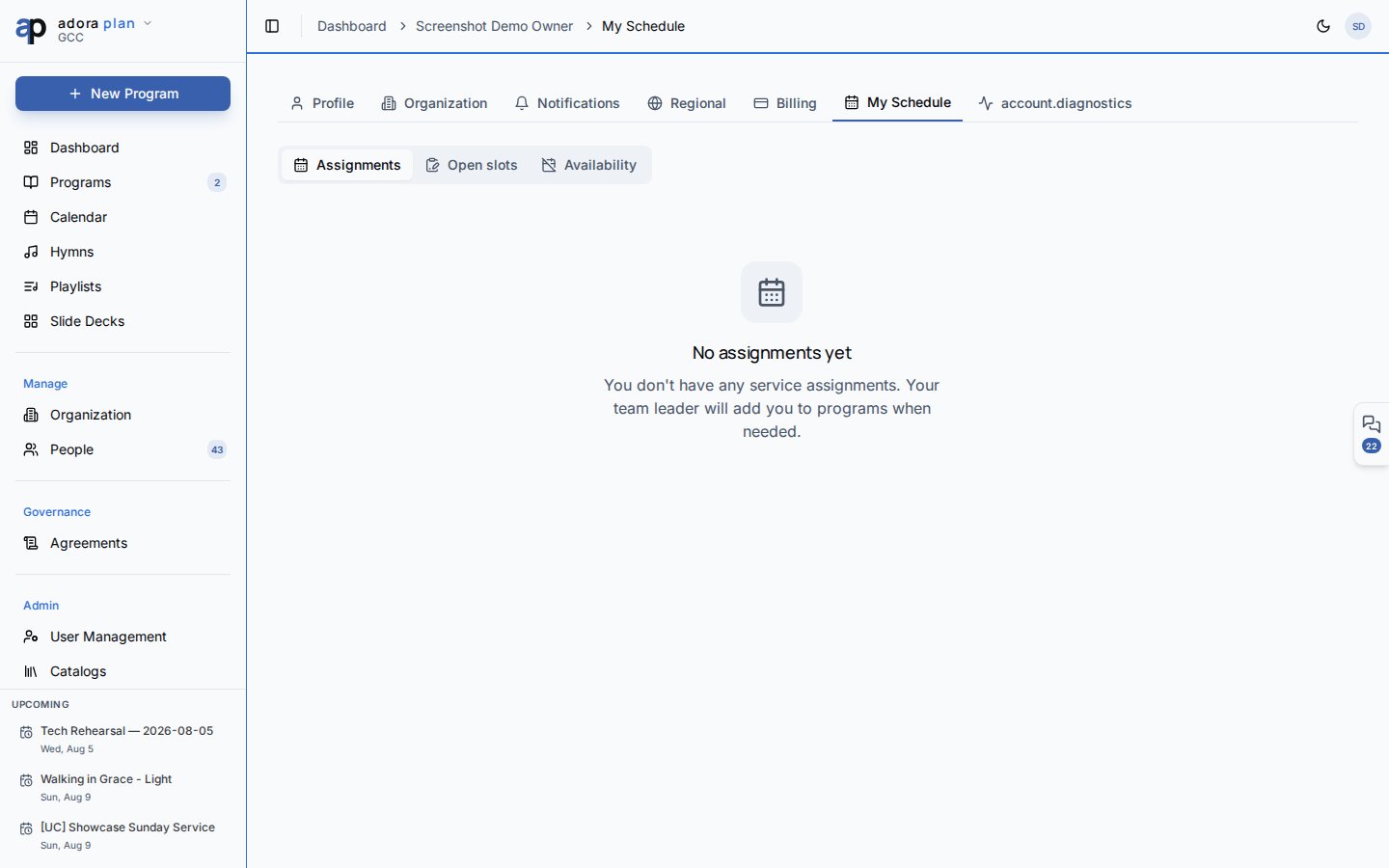
/account/schedule).
When a volunteer declines, the system can automatically invite the next qualified, available volunteer when one exists.
Smart scheduling at a glance
Related
People
Add collaborators and set role qualifications.
Organization
Define staffing templates per service type.
Programs
Per-program roster editing from the program editor.
Notifications
Roster invitations and burnout warnings.