

Presentation requires AdoraPlan Pro or AdoraSuite (
presentationMode feature). Your church must also have the advanced plan capability to access presentation routes.Quick Start
- Open a source with songs — Hymns, Playlists, or Programs (edit a program with hymns in the service order).
- Click Present (or select multiple hymns → Present).
- In the Presentation Mode dialog, click Start Presentation.
- A display window opens at
/present— drag it to your projector. - Use arrow keys or the launcher controls to advance slides. Expand Use my phone as a remote for a QR code.
How-to Guide
Where to launch
Program presentations include songs and custom slides from the service order. Activity-only items are skipped.
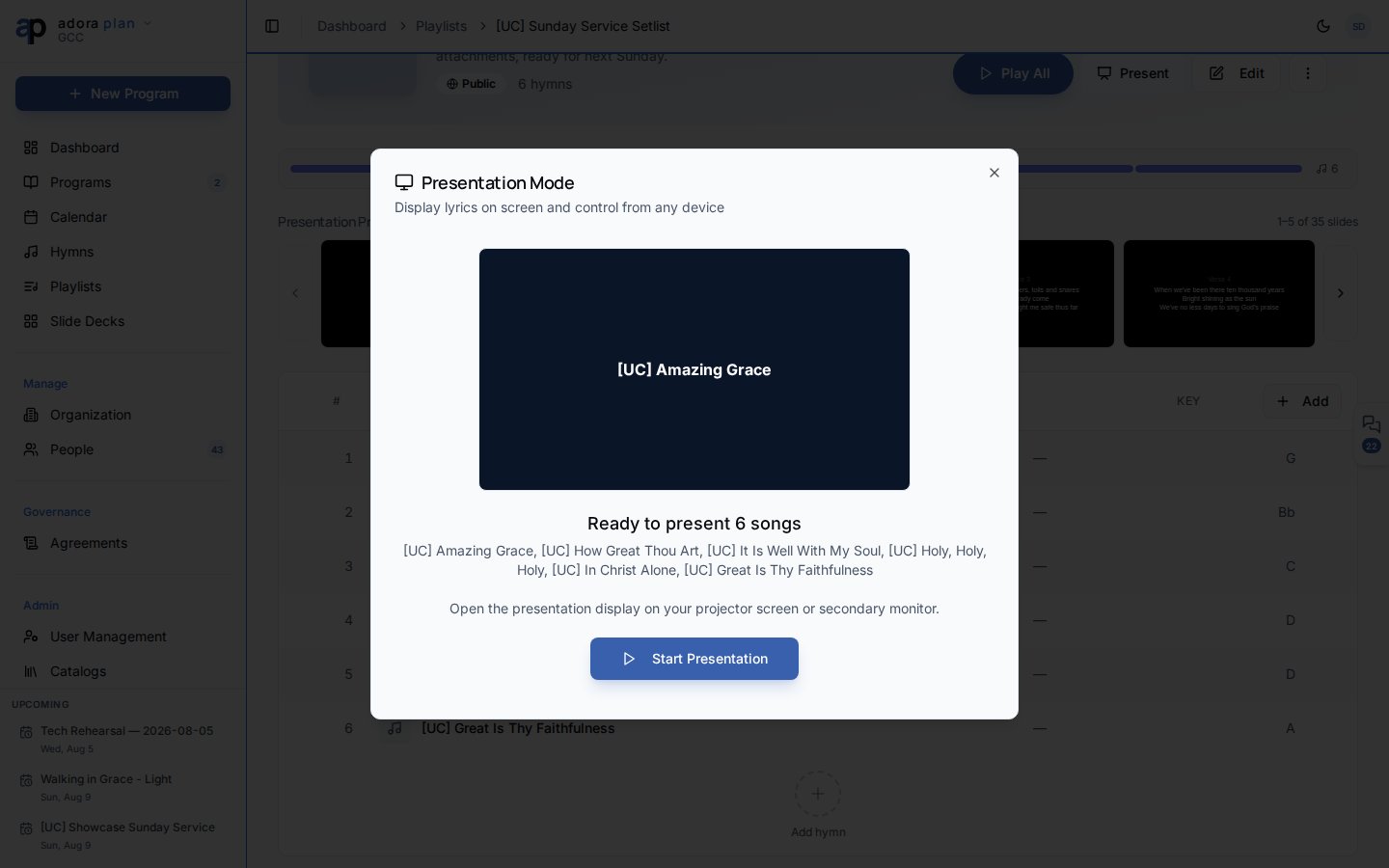
Presentation Mode dialog
Before you start:- Preview the first slide
- See how many items will be presented and their titles
- Click Start Presentation to create a session and open the display window
- Live slide preview with counter (e.g. 3 / 24)
- Previous slide, Black, Next slide buttons
- Open Display Window — reopen
/presentif the projector window was closed - Use my phone as a remote — QR code and 6-character session code (see Remote Control)
- End — close the session
Display window (/present)
The projector window shows:
- Lyric slides with section labels (verse, chorus, etc.)
- Title slides and custom program slides
- Optional author and CCLI credits (from Settings → Presentation)
A control bar appears at the bottom when you move the mouse (auto-hides after a few seconds).
Karaoke mode
Songs with synced audio can open Karaoke from the hymn page — a separate full-screen view at/present/karaoke?songId=… with timed lyric highlighting. Tune appearance under Settings → Karaoke.
Customize appearance
Settings → Presentation controls font size, colors, and which elements appear on slides (title slide, CCLI, author, etc.). Settings are saved per browser/device.Related
Playlists
Build song sets and present them in order.
Programs
Present the full service order including custom slides.
Remote Control
Control slides from your phone during worship.
Hymns & Songs
Source lyrics for every slide.