

Quick Start
- Open Care → Families.
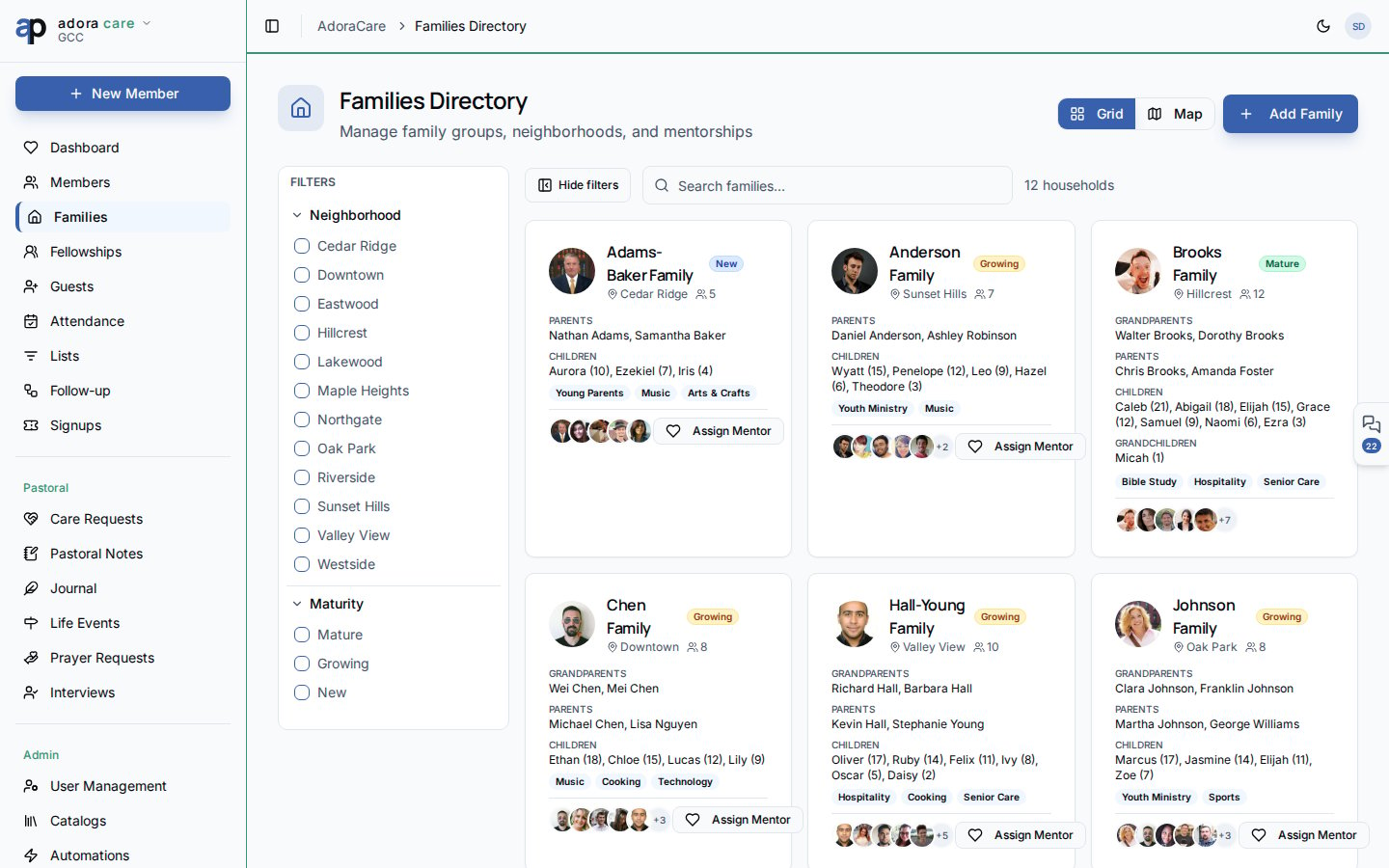
- Browse the Grid or switch to Map to see geographic clusters.
- Filter by Neighborhood or Maturity (New, Growing, Mature).
- Click Add Family to create a household and assign members.
- Open a family card to edit relationships, mentorships, and notes.
How-to Guide
Grid and map views
Use the side Filters panel (or mobile sheet) to combine neighborhood and maturity filters. Active filter chips appear above the results.
Family card details
Each family record includes:- Household name and optional photo
- Members with roles (Head, Spouse, Child, etc.)
- Neighborhood tag for regional care teams
- Maturity level for discipleship tracking
- Mentorship links — families mentoring or being mentored
Mentorship connections
From a family detail page, use Mentor Family to link an experienced household with one that is newer in the community. Mentorship counts appear on list cards so coordinators spot gaps quickly.1
Create the household
Click Add Family, name the household, and set neighborhood / maturity if you use those fields.
2
Add members
Attach existing Members with household roles. Mark a Primary contact for outreach.
3
Connect mentorships
Use Mentor Family to pair households for follow-up and accountability.
Related
Members
Individual profiles linked to family roles.
Fellowships
Small groups that often overlap with family life stages.
Portal — Family
Members view their own household in the portal.