

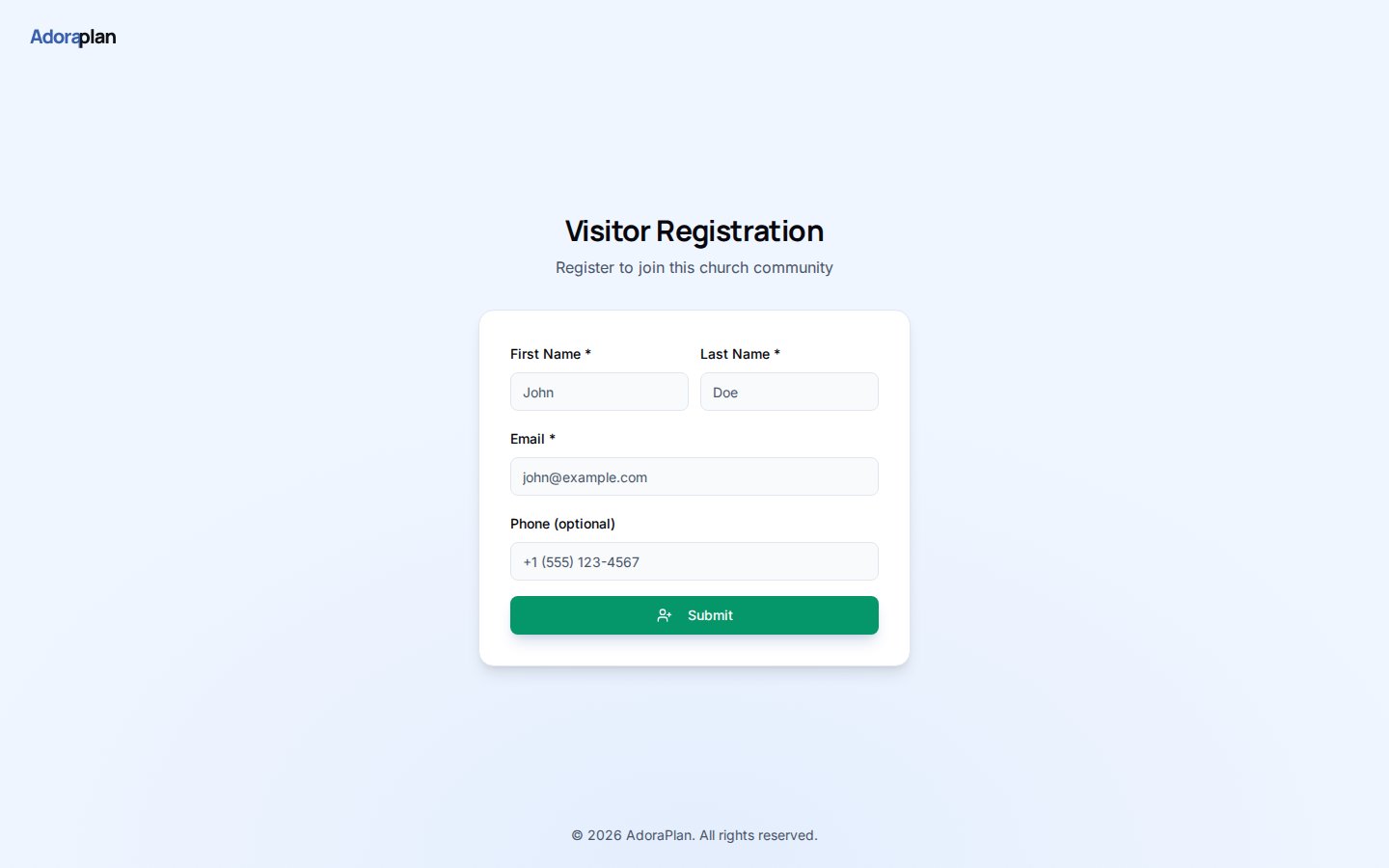
Quick Start
- Set your church short name (slug) on the church record — used in the URL.
- Enable the portal under Settings → Portal.
- Copy the Registration URL from the Portal settings card.
- Share the link on welcome cards, slides, or your website.
- Review pending registrations in Care (Portal Registration Review) and approve to create a member + token.
How-to Guide
Registration URL format
/portal/register/mi-comunidad
The slug must match the church short name configured in your organization settings.
Three-step visitor flow
1
Fill the form
First name, last name, email (required), and optional phone.
2
Verify email
A 6-digit code is emailed; visitors enter it on the OTP screen.
3
Await approval
Status becomes pending until an admin approves in AdoraCare.
Admin review
Staff with care access see pending rows in the portal registration review panel:- Approve — creates member + 90-day token + welcome email
- Reject — closes the registration without portal access
Related
Guest Pipeline
Track guests manually before or alongside self-registration.
Member Portal
What members see after approval.
Portal — Security
Registration URL and directory privacy settings.