

Quick Start
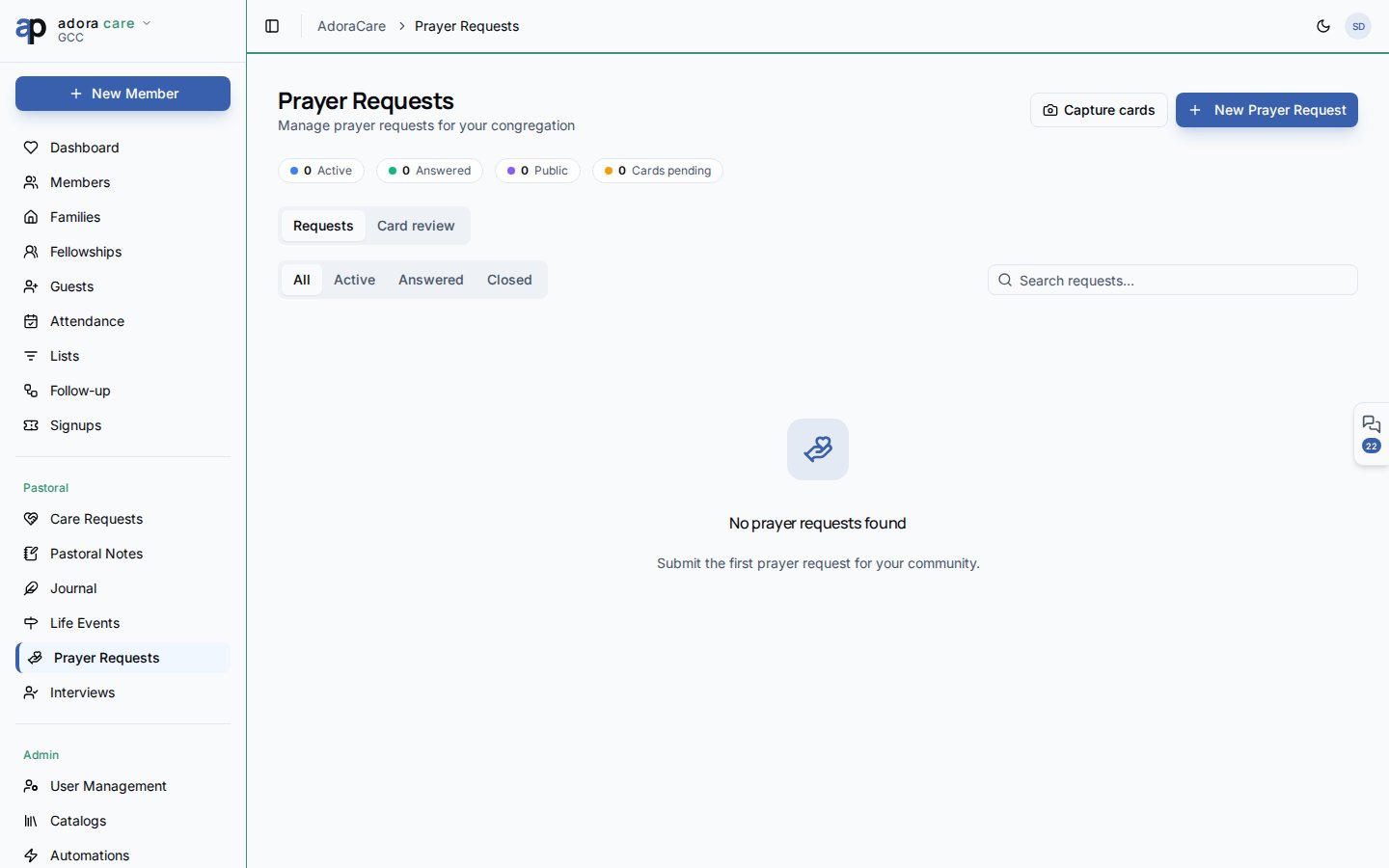
- Open Care → Prayer Requests.
- On the Requests tab, review active, answered, and public counts.
- Click New Prayer Request to log a need manually.
- Change Status to Answered when God provides —
answered_atis stamped automatically. - Switch to Prayer Cards to bulk-scan or review submitted cards.
How-to Guide
Requests tab
Cards show thumbnails when a photo attachment exists (e.g., from prayer card intake).
Prayer Cards tab
When your church collects physical prayer cards:- Open Prayer Cards and use Bulk Capture to photograph multiple cards.
- Review the Pending queue — OCR and staff review turn cards into structured requests.
- Approve or edit before they join the main request list.
Portal submissions
Members with portal access can submit requests from Portal → Prayer Requests. Those appear here with source metadata and respect the same public/private rules.1
Log or import
Add requests manually, from prayer cards, or via the member portal.
2
Shepherd the list
Keep active requests visible; move answered items to celebrate faithfulness.
3
Moderate visibility
Toggle Public only for requests the member approves for the wider church.
Related
Care Requests
Practical care alongside prayer support.
Member Portal
Members submit prayers through the portal.
Pastoral Notes
Confidential context for sensitive prayer needs.