

Quick Start
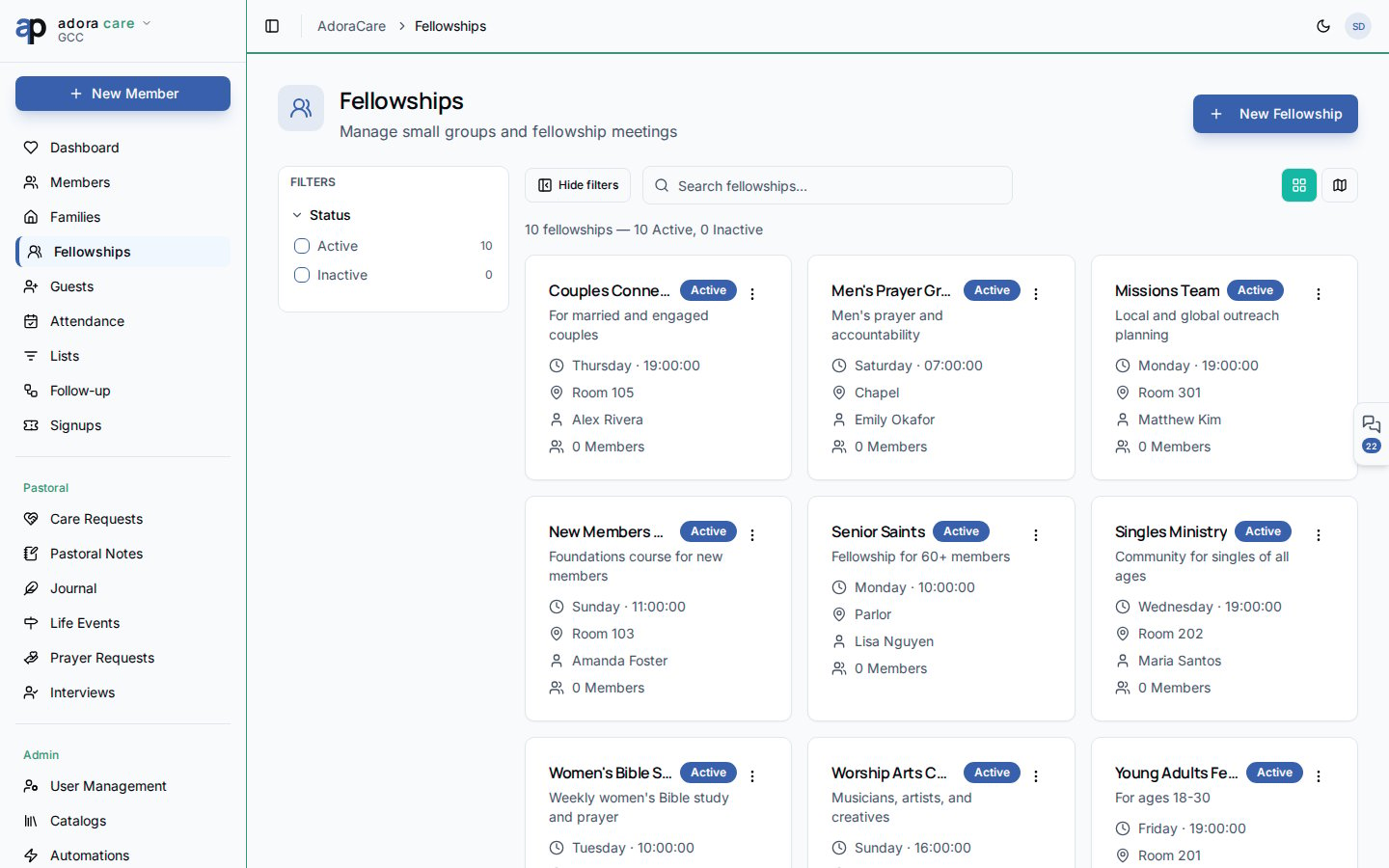
- Open Care → Fellowships.
- Search by name or filter Active / Inactive groups.
- Toggle Grid or Map to browse visually.
- Click Create → Add Fellowship to register a new group.
- Open a fellowship to manage members, leaders, and meeting details.
How-to Guide
Fellowship list
The header summarizes total fellowships and active vs. inactive counts. Filters persist in the URL so you can share a filtered view with your team. Each Fellowship card shows:- Group name and description
- Leader(s) and member count
- Meeting rhythm (day, time, location when configured)
- Active / inactive status
Fellowship detail
On the detail page you can:- Add or remove Members and assign Leader roles
- Record meeting location for the Map view
- Mark a fellowship Inactive when it sunsets
- Review workflow indicators (e.g., attendance drop, capacity reached)
Create a fellowship
1
Add the group
Create → Add Fellowship and enter name, description, and meeting pattern.
2
Assign leadership
Pick one or more leaders from your Members directory.
3
Enroll members
Add participants; member counts update on the grid and map views.
Related
Members
People records attached to fellowship rosters.
Families
Household view complements small-group care.
Guest Pipeline
Route new guests into fellowships after follow-up.