

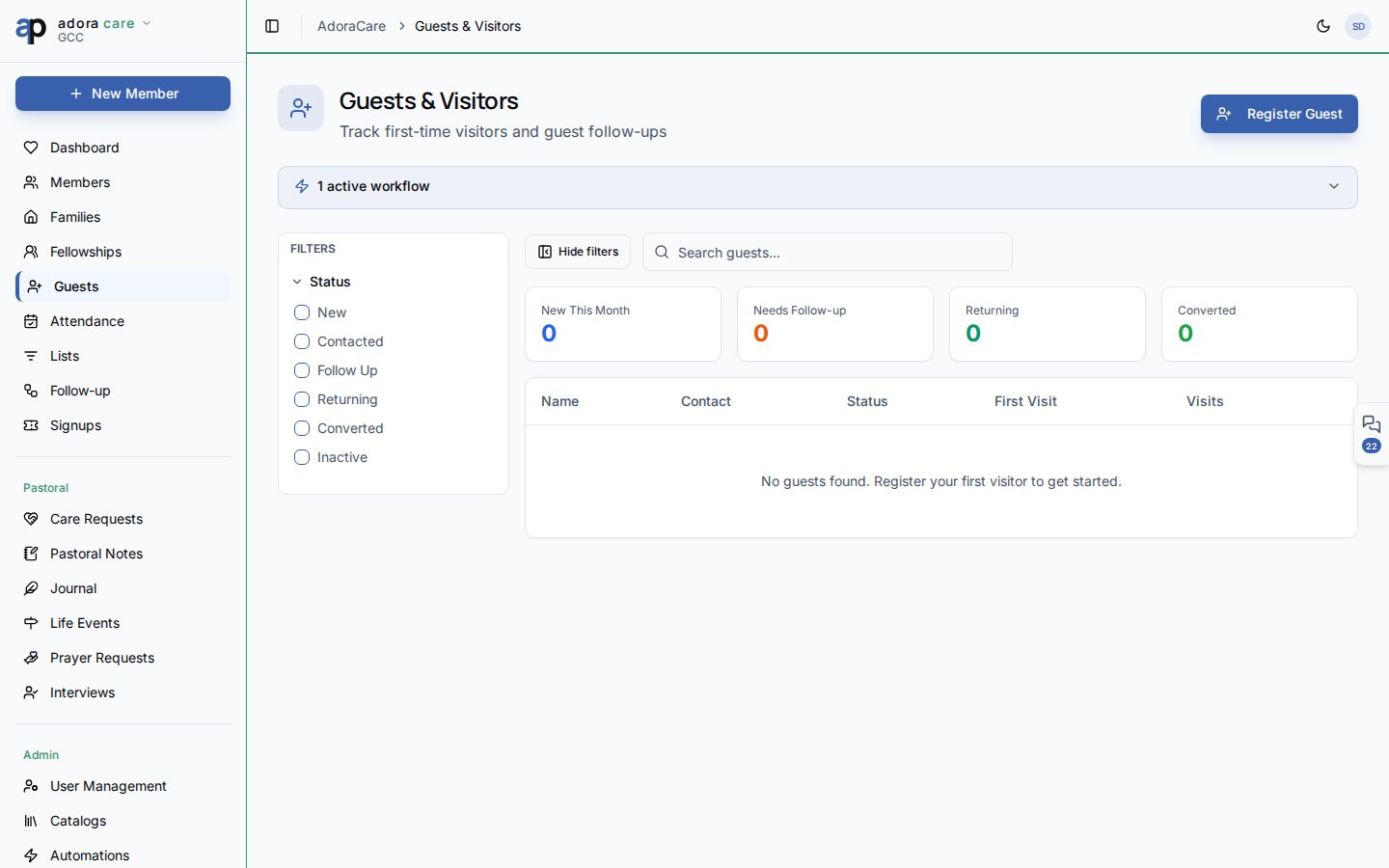
Quick Start
- Open Care → Guests.
- Click Add Guest after a service or event to log a visitor.
- Filter by Status (stages defined in Catalogs → Guest Statuses).
- Update status as follow-up calls and visits happen.
- Use Convert to Member when someone joins the church family.
How-to Guide
Guest statuses
Statuses are tenant-configurable with optional emoji labels — for example:- New — first visit logged
- Contacted — hospitality team reached out
- Returning — came back a second time
- Ready — prepared for membership class
Guest record
Convert to member
When a guest commits, choose Convert to Member from the row menu. AdoraCare creates a Member record (or links an existing one) and preserves history for reporting.Related
Members
Destination record after conversion.
Visitor Registration
Self-service guest sign-up via the portal link.
Fellowships
Place returning guests into small groups.